You copy something, then copy something else, and the first item is gone. That small frustration happens to everyone on Windows, because the normal clipboard remembers only one item at a time. Clipboard History fixes this. Once you turn it on, Windows remembers many of your recent copies — text, links, and images — so you can paste an item you copied ten minutes ago without copying it again.
This guide explains Clipboard History in plain language: how to turn it on, how to paste older items, how to pin the ones you reuse, and how to clear it safely. It works on Windows 10 and Windows 11, and it takes about a minute to set up.
Turn On Clipboard History in One Minute
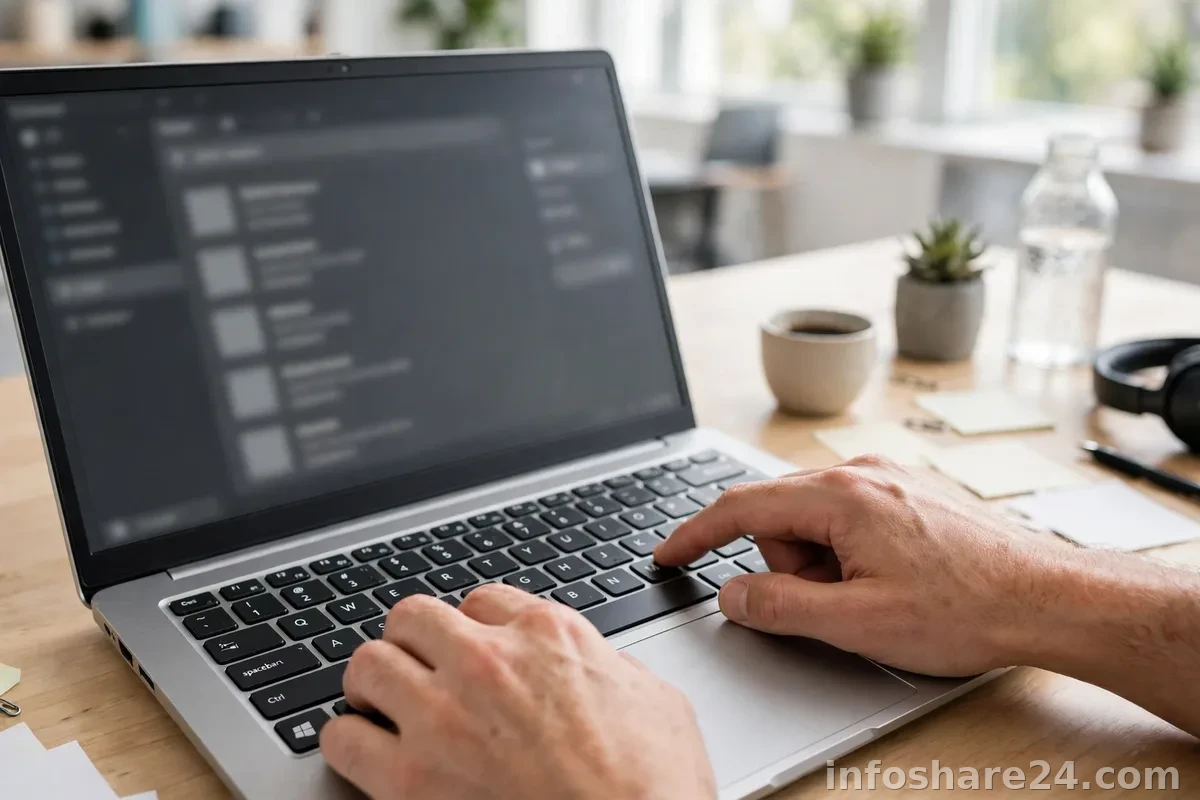
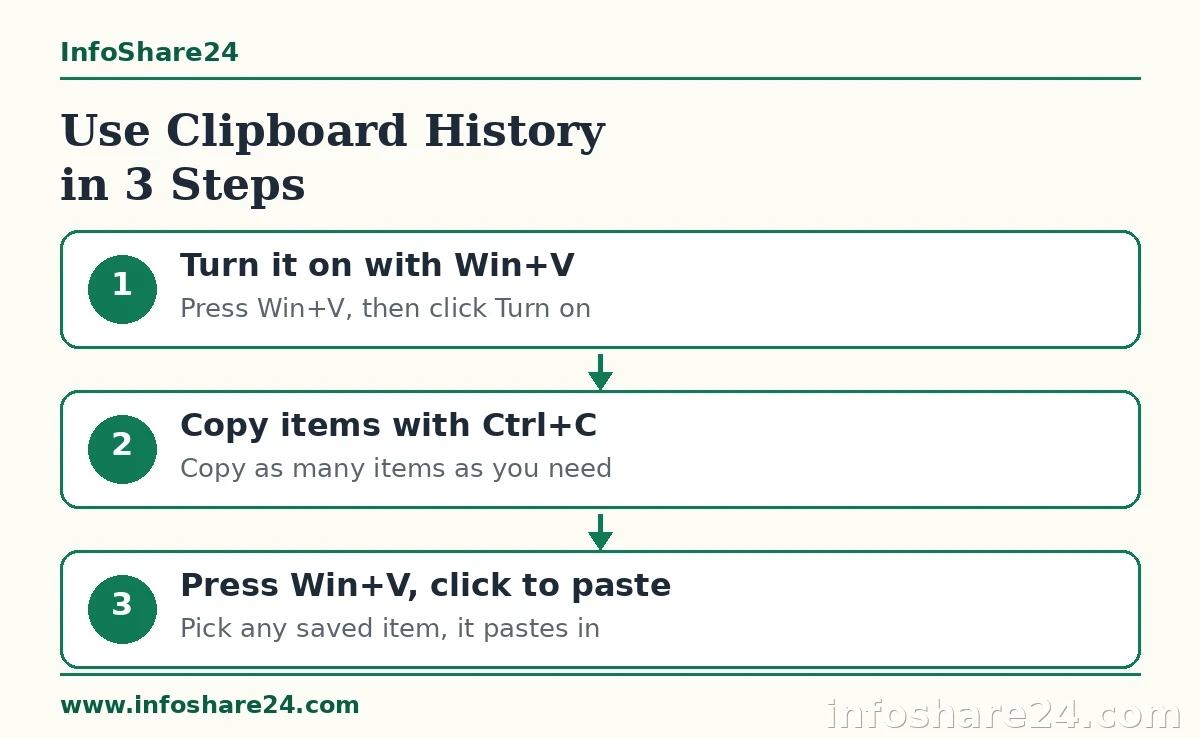
Press the Windows key and V together — that is, hold down the Windows key, then press V. This shortcut is written as Win+V.
- Press Win+V. The first time you press it, Windows shows a small panel asking you to turn on Clipboard History.
- Click “Turn on,” and you are done.
If that panel does not appear, you can turn it on in Settings instead. Open Settings, go to System, then Clipboard, and switch on “Clipboard history.” On some computers the switch may be managed by a school or office, in which case you may need to ask your IT support. For a personal computer, though, the switch is normally yours to control.
From now on, every time you copy with Ctrl+C, or cut with Ctrl+X, Windows saves that item in your history as well as in the normal clipboard. Nothing looks different while you work. The change only appears when you press Win+V and see your saved items waiting for you.
Copy Many Items, Then Paste Any of Them
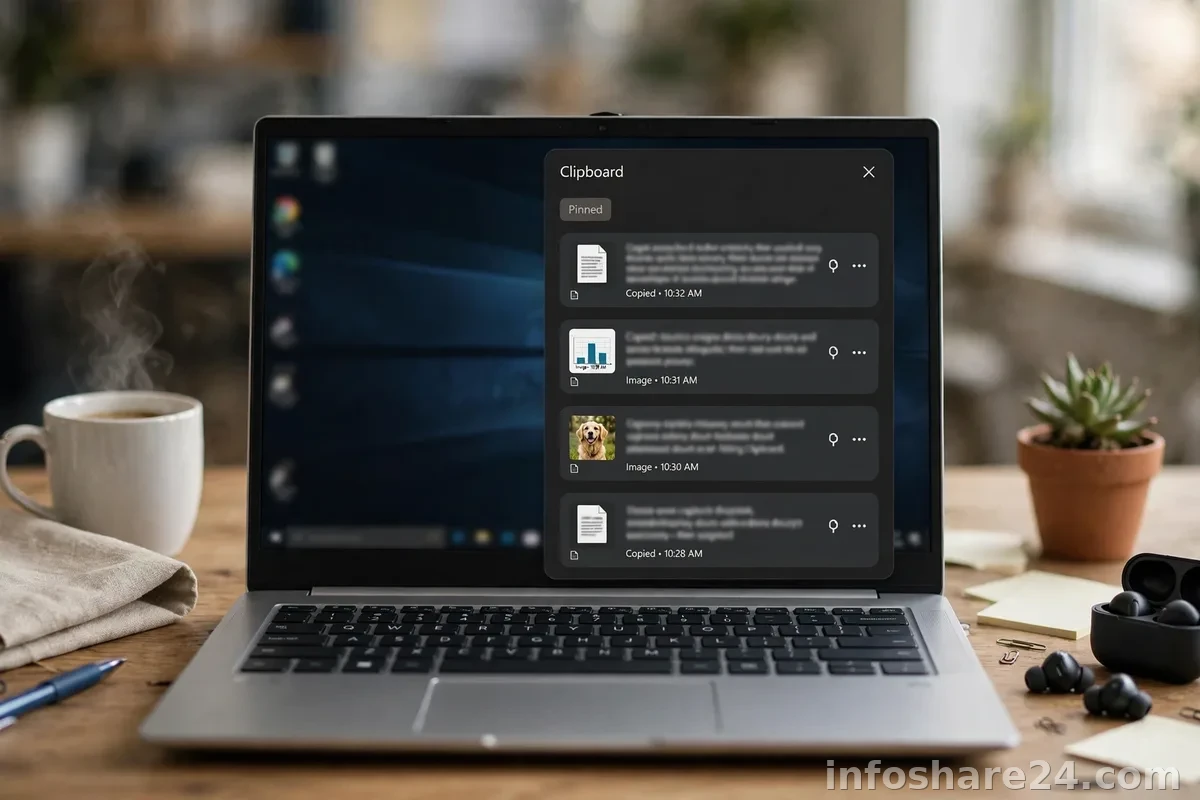
Here is how it works in practice. Suppose you are writing an email and need three things: a website address, a phone number, and a short paragraph from a document.
- Copy all three, one after another, from wherever they live.
- Go to your email and press Win+V — you will see a list of your recent copies, newest first.
- Click the item you want, and it pastes into your document.
This is much faster than the old way of copying, switching windows, pasting, switching back, and copying again. It is especially useful when you are filling in forms, collecting research notes, writing reports, or moving information between a browser and a document. You can also copy an image, such as a screenshot or a small picture, and paste it later from the same panel.
Pin the Items You Use Again and Again
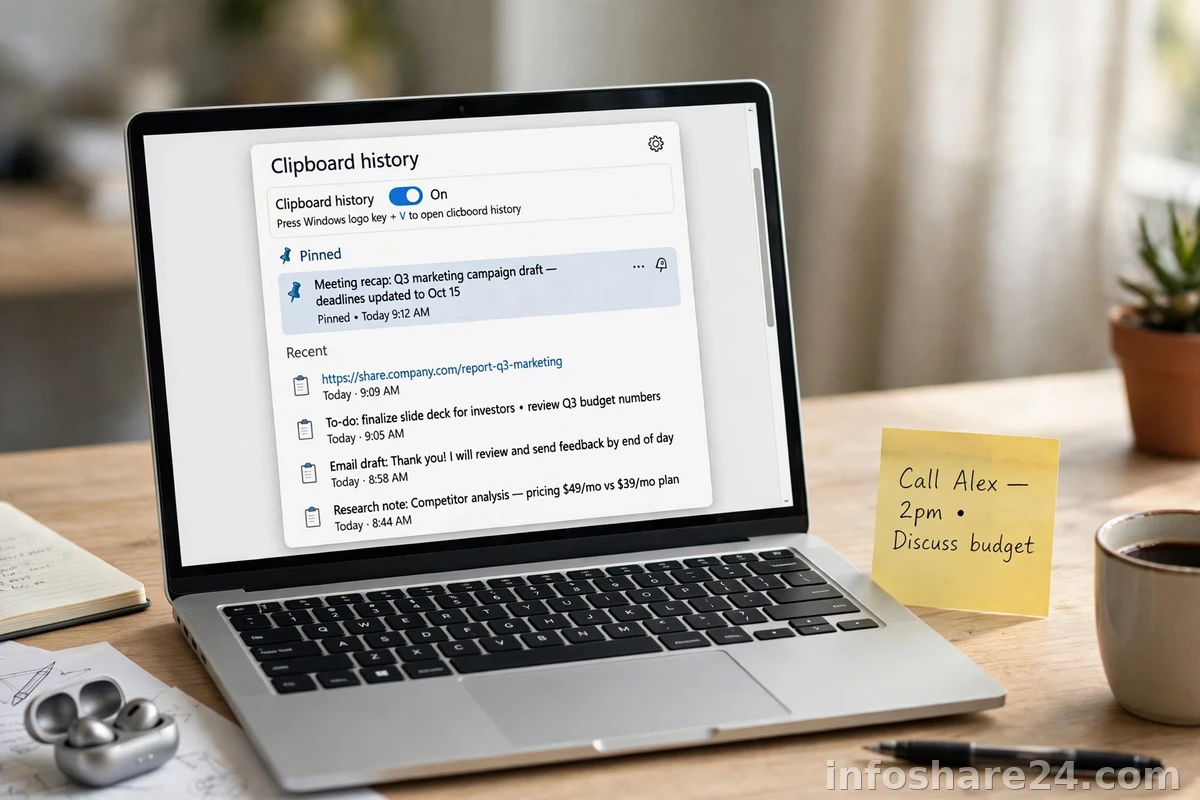
Some items are worth keeping beyond your recent history. Your office address, your email signature, a standard reply you send often, or a link you share every week are good examples. Clipboard History lets you pin these items so they are not pushed out when newer copies arrive.
To pin an item, press Win+V, find the item in the list, and click the small pin icon on it (on some versions, click the three dots first, then Pin). Pinned items stay at the top of your history and survive a restart. To remove a pin later, open the panel again and click the pin icon a second time to unpin it.
Pinning is a small habit with a big payoff. Instead of hunting through old emails for the same address every time, you press Win+V and click it. Keep your pinned list short, though. Five or six genuinely useful items are easy to find; thirty pinned items become a second search problem. Review your pins now and then and unpin anything you no longer use.
Clear History and Keep Private Items Safe
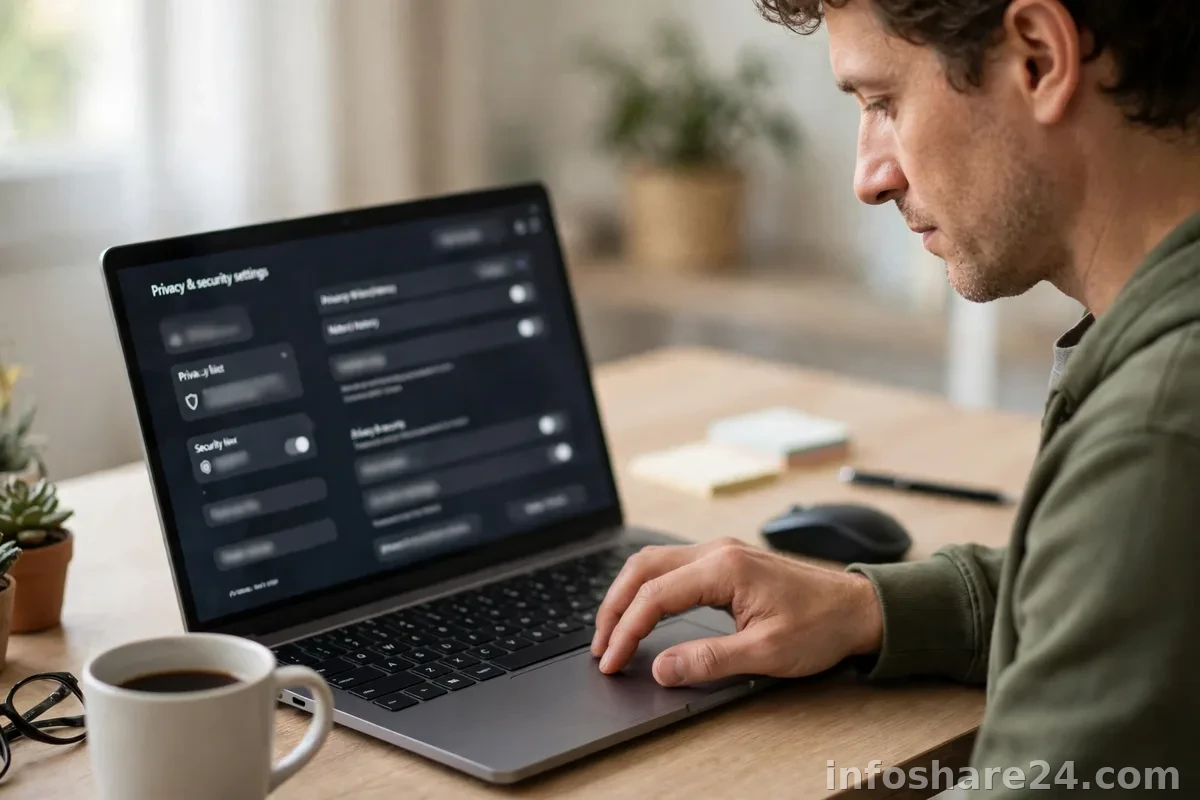
Because Clipboard History saves what you copy, you should treat it like a desk drawer: useful, but not a place to leave private things lying around. If you copy a password, a bank account number, or a private message, that item sits in your history until you clear it or it is pushed out by newer items.
Clearing is easy. Press Win+V, click “Clear all” at the top of the panel, and every unpinned item is removed. Pinned items stay, so unpin a private item first if you pinned it by mistake. You can also delete a single item: open the panel, find the item, click its three dots, and choose Delete.
A simple safety rule helps a lot: never copy a password just to paste it somewhere if you can use a password manager or type it instead. A strong, memorable password system is safer than a clipboard full of passwords, as explained in How to Create a Strong Password You Can Actually Remember. And for your most important accounts, add a second layer of protection, described in What Is Two-Factor Authentication and How to Turn It On.
Sync: Helpful, but Think Before You Turn It On
Windows offers an extra option called “Sync across devices.” With it on, your clipboard items can travel between your Windows devices when you are signed in with the same Microsoft account. Copy on your desktop, paste on your laptop: that is genuinely convenient.
But convenience has a trade-off. Sync means your copied items leave your computer and pass through Microsoft’s cloud service. For everyday text and links, most people accept that. For sensitive work documents, private messages, or anything confidential, it is wiser to leave sync off. You can find the sync switch in Settings, under System and then Clipboard, right below the history switch. On a shared or office computer, keep sync off unless your organisation specifically asks you to use it.
Everyday Ways Clipboard History Saves Time

Students can copy several quotes or references for an assignment, then paste them one by one while writing, instead of jumping back and forth between pages. Office workers can copy a name, an address, and a reference number from different systems into a single form in one smooth pass. Anyone writing messages can keep a polite standard reply pinned and reuse it without retyping.
Frequently Asked Questions
Does Clipboard History work on Windows 10 and Windows 11?
Yes. Both versions support it, with the same Win+V shortcut. The Settings layout looks slightly different between versions, but the Clipboard section is under System in both.
How many items does Clipboard History remember?
Windows keeps a limited set of recent items, and very large copies may not be saved. For a reliable long-term store, save important text in a document or notes app and use Clipboard History for today’s work.
Do pinned items stay after I restart my computer?
Yes. Pinned items are kept, while unpinned items may be cleared on restart depending on your settings. Pin anything you want to keep across restarts.
Is it safe to copy passwords with Clipboard History on?
It is risky, because the password stays in your history until cleared. Avoid copying passwords where possible, use a password manager, and clear your history after copying anything sensitive.
Why is Win+V not showing my history?
Clipboard History may be switched off. Press Win+V and click “Turn on,” or go to Settings, then System, then Clipboard, and switch on “Clipboard history.” If the switch is greyed out, your school or office may control it.
Conclusion
Windows Clipboard History is a small feature that removes a daily annoyance. Press Win+V to see your recent copies, click any item to paste it, pin the few items you reuse often, and clear the history when you have copied something private. Leave sync off unless you truly need it across devices. Turn it on once, and copying on Windows will feel noticeably easier from the very first day.