You recorded a long family video or finished a big project file, and now you need to send it. Email will not take it, and a messaging app will shrink the quality. This guide shows you how to share large files safely with Google Drive, so the other person gets the full-quality file and nobody else gets access by mistake.
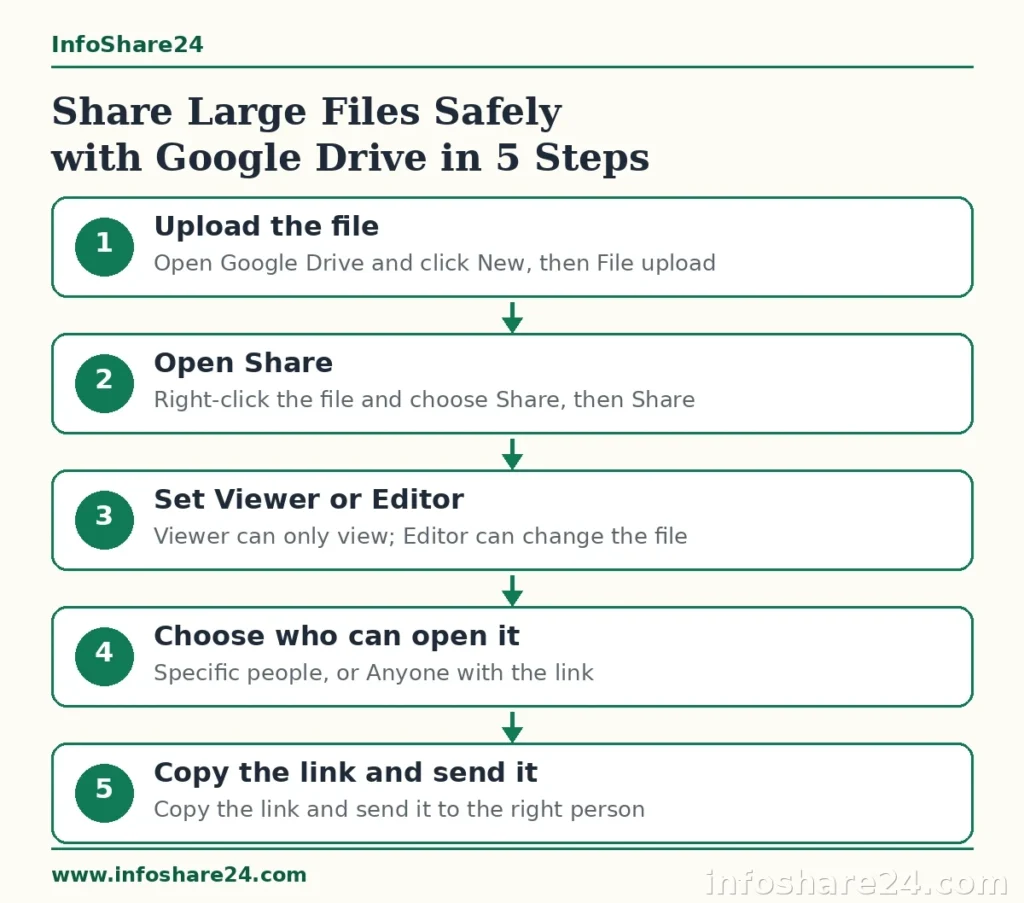
How to Share Large Files Safely with Google Drive in 5 Steps
- Upload the file to Google Drive. Open drive.google.com, click New, then File upload, and choose the file.
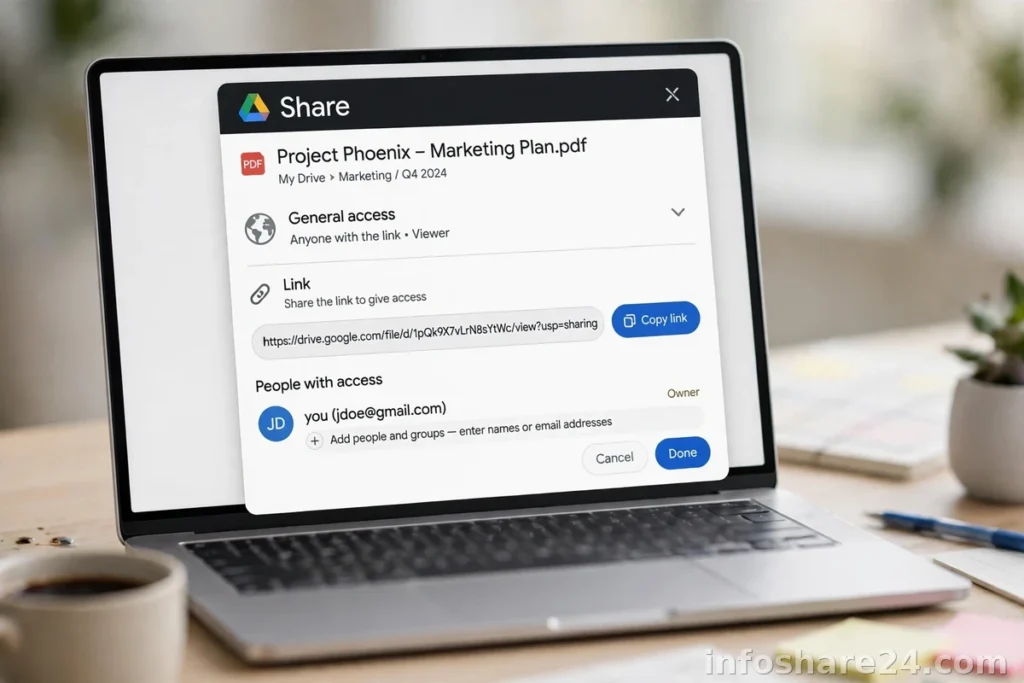
- Right-click the file and choose Share, then Share again. A sharing box will open.
- Set the permission to Viewer or Editor. Viewer can only open the file. Editor can also change or delete it.
- Choose who can open the file. Add specific people by email, or turn on “Anyone with the link” — only for files that are not sensitive.
- Click Copy link, then send the link to the right person. Double-check the name before you press send.
Why Email Fails for Big Files
Gmail lets you attach files up to 25 MB in one email, but a single minute of phone video is often bigger than that. Gmail either refuses a large file or uploads it to Drive and sends a link anyway, without asking you to check the sharing settings. Worse, once you send a file by email, you cannot take it back — with a Drive link, you can remove access at any time. Messaging apps are no better: many shrink photos and videos, so the other person gets a lower-quality copy.
Before You Upload: Check Your Storage
Google gives every free account 15 GB of storage, shared between Drive, Gmail, and Google Photos, so check the storage meter on the left side of Drive first — a few long videos can fill it fast. If you are nearly full, delete old files you no longer need; if you need more space regularly, compare your options — see What Is Cloud Storage and How to Choose the Right One.
How to Upload a Large File to Google Drive
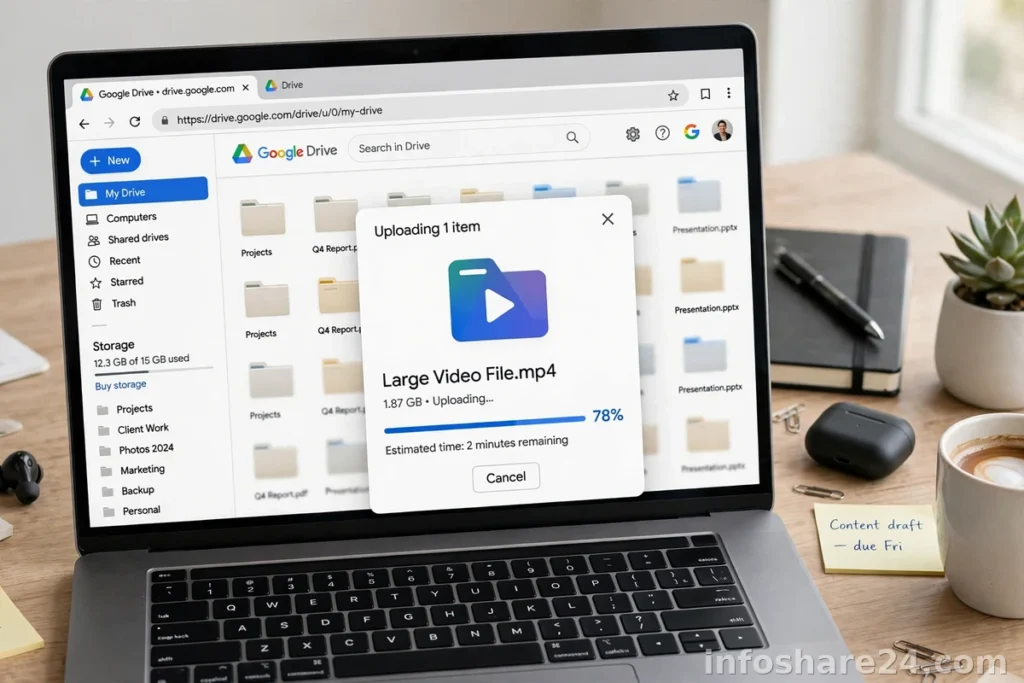
On a computer, go to drive.google.com and sign in, click New, then File upload, and choose the file. You can also drag it into the Drive window. Wait for the upload to finish — a progress box appears at the bottom right.
On a phone, open the Drive app, tap +, tap Upload, and choose the file. Wait for it to finish before you close the app. To send a whole folder, choose Folder upload on a computer, or compress it into a ZIP file first.
Viewer vs Editor: Choose the Right Permission
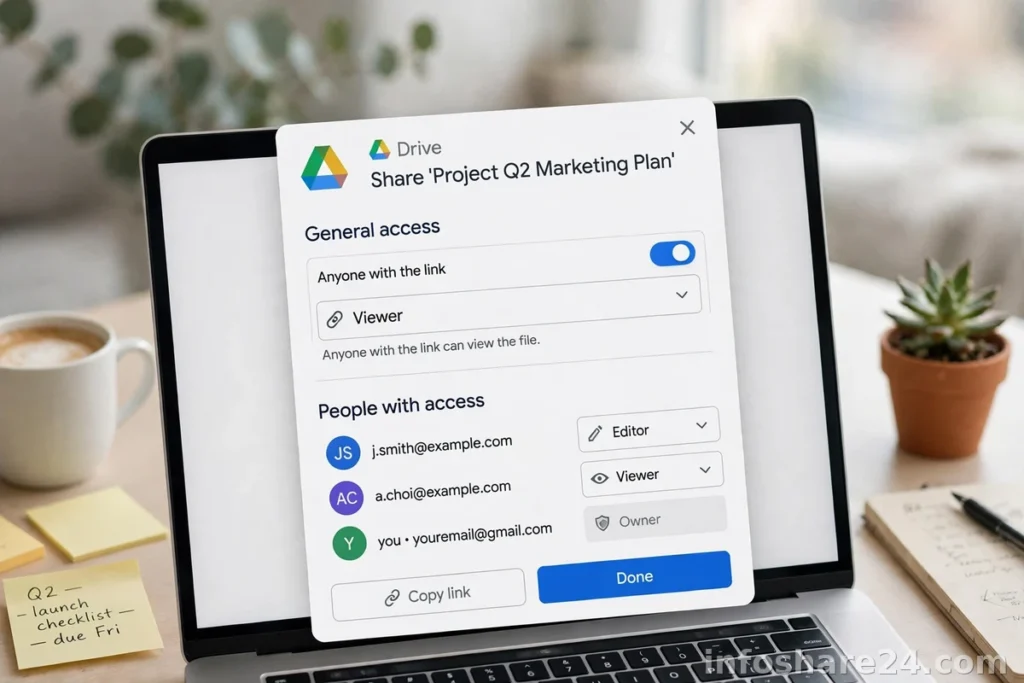
Viewer is the safe default. The person can open the file and download a copy if you allow it, but cannot change or delete it. Use Viewer for almost everything: family photos, a video for a friend, or a file for a client.
Editor is for working together. An Editor can change the document and even delete the file, so only give it to people you trust who genuinely need to change it. If you are not sure, choose Viewer — you can change it later, but you cannot undo a deletion.
Anyone with the Link vs Specific People
Specific people is the safest choice. Only the Google account you type in can open the file — anyone else sees a “Request access” page. Use this for anything personal: family photos, identity documents, or work files.
Anyone with the link means exactly what it says: anyone who has the link can open the file if it is forwarded. It suits public files, such as an event flyer, but never use it for sensitive files.
How to Set an Expiry Date and Remove Access Later
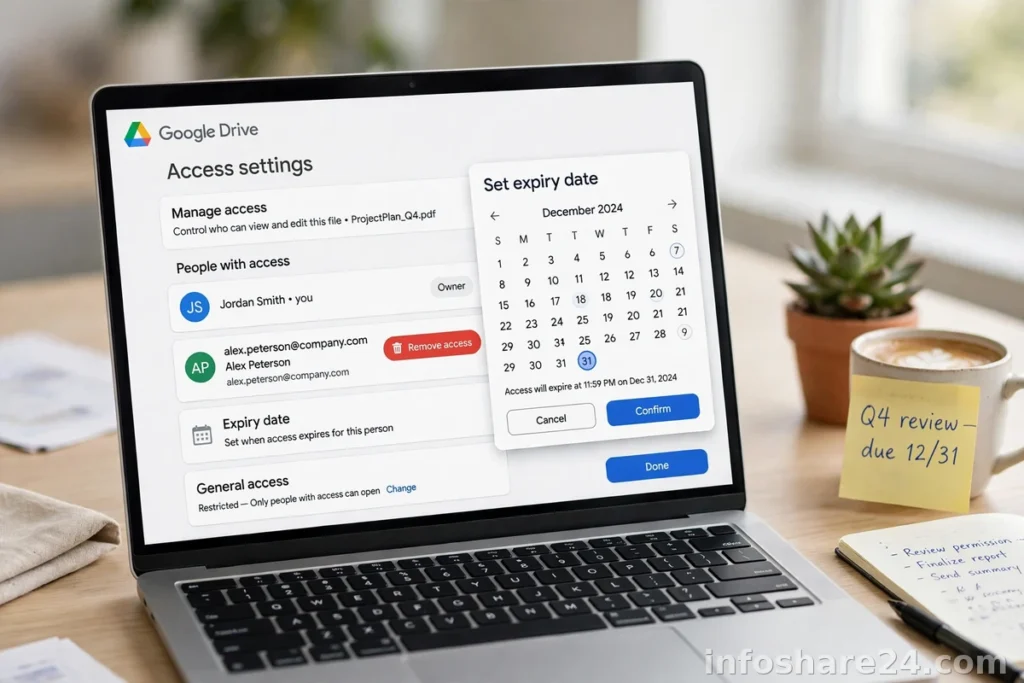
Sharing does not have to last forever. If your account offers it, open the Share box, find the person, and choose an expiry date — after that date, they lose access automatically. If you do not see the option, set a reminder to remove the access yourself.
To remove access, open the Share box, find the person, choose Remove access, and click Save or Done. To switch off a link completely, change “Anyone with the link” back to “Restricted”. Old links are the ones most likely to be forwarded to the wrong person.
How to Share a Whole Folder
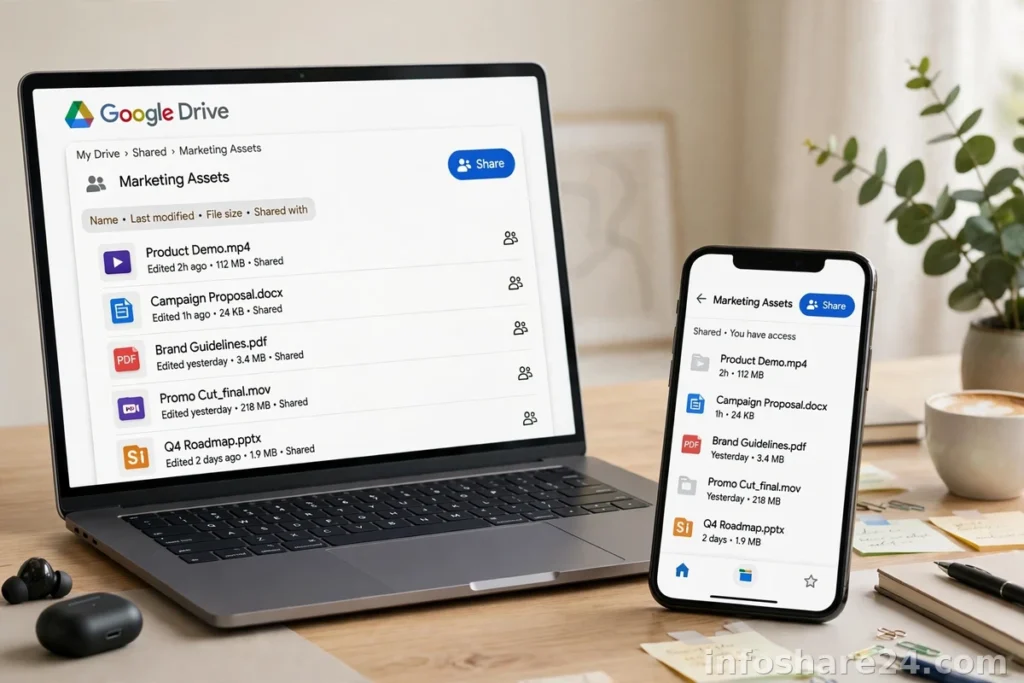
Sharing one file at a time is slow when you have twenty files to send. Share the folder instead: right-click it in Drive, choose Share, then Share again, and set the permission and people as for a single file. Everyone you share it with can see every file inside, including files you add later — so never put a private file into a folder you have already shared. Give the folder a clear name first, such as “Cox’s Bazar Trip — March 2026”.
What to Do If the Recipient Cannot Open the File
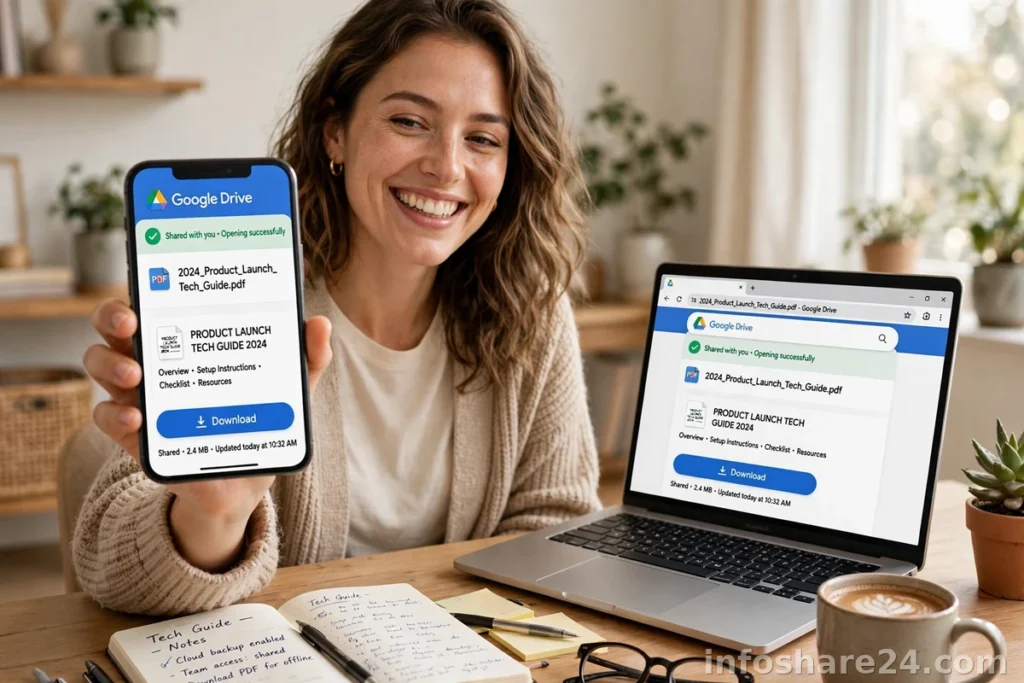
- “You need access”. The recipient is signed in with a different Google account. Add the exact email they use, or use “Anyone with the link” if the file is not sensitive.
- A broken link. The file may be in the Trash, or you copied the link before the upload finished. Copy a fresh link from the Share box.
- The video will not play. Large videos need time to process. Wait a few minutes, or download the file instead of playing it in the browser.
- The download is very slow. Ask the recipient to try on Wi-Fi, or split a large folder into two smaller shares.
If you move a file between your own devices first, the same care applies — see How to Transfer Files Between Phone and Computer Easily.
Safety Rules for Sharing Files
Only share with people you trust. Check the link before sending it — open it in a private browser window and ask who can open it. Never share sensitive files with “Anyone with the link”: identity documents and private photos should only go to named people. Use Viewer unless editing is really needed, and remove access when it is no longer needed. Be careful with links you receive: if a stranger sends you a Drive link, do not open it unless you expected it.
WeTransfer: A One-Off Alternative
If you are sending a large video to someone once, WeTransfer is a simple alternative. Upload the file on its website, enter the recipient’s email, and they get a download link that expires after a few days. The free version has a file-size limit, so it suits one-off sends — and never use it for sensitive documents.
Frequently Asked Questions
How large a file can I share with Google Drive?
A single file can be up to 5 TB, but your free account only has 15 GB of storage in total, shared with Gmail and Google Photos.
Does the recipient need a Google account?
If you share with specific people, yes — they must sign in with the account you added. With “Anyone with the link”, they can open it without signing in, but that is less safe for private files.
Can I stop someone from downloading my file?
Yes, for Viewers. In the Share box, click the gear icon and untick “Viewers and commenters can see the option to download, print, and copy”.
Conclusion
Email was never built for big files, but Google Drive was. Upload the file once, choose Viewer unless editing is needed, share with named people, and remove access when the job is done. Try it today with one large file you have been meaning to send.