Your battery dies by lunch, a strange app appears out of nowhere, and your mobile data runs out days early. So you ask: is my phone hacked? No single test can prove it — but a few simple checks can tell you a lot. Mobile malware is common: Zimperium’s 2025 Global Mobile Threat Report found malware on about 18 in every 100 devices in its sample, and Malwarebytes reported Android spyware up 147% in the first half of 2025. Here are the 7 checks that work and the 3 that do not.
Warning Signs Your Phone May Be Hacked

One odd thing alone usually means nothing. Look for a pattern:
- Battery drains fast with light use.
- Mobile data runs out early for no clear reason.
- Pop-up ads appear on your home screen or over other apps.
- Apps you never installed show up in your app list.
- Phone feels hot, slow, or restarts by itself.
- Strange texts, calls, or charges you did not send or make.
- Settings change on their own, or you are signed out of your accounts.
Two or three together means run the checks below. One alone is probably a buggy app or an old battery.
3 Checks That Don’t Work
These three “hacked phone tests” are everywhere online, and none of them works.
1. Dialling *#21# or *#62# to “detect hackers.” These codes only show call-forwarding settings. Usually the result is just your carrier’s voicemail number. They cannot find spyware or malware. One use only: if *#21# shows a number you do not recognise, dial ##002# to cancel all forwarding.
2. Checking your IMEI number on a “hacked phone” website. Your IMEI is just your phone’s identity number — no website can scan your phone from outside.
3. Installing a “phone hacked checker” app. No app can prove your phone is clean with one tap, and “hacked or not” apps are often adware themselves. Never install a security app from outside the Play Store or a link in a text — use Play Protect instead; it is check 7 below.
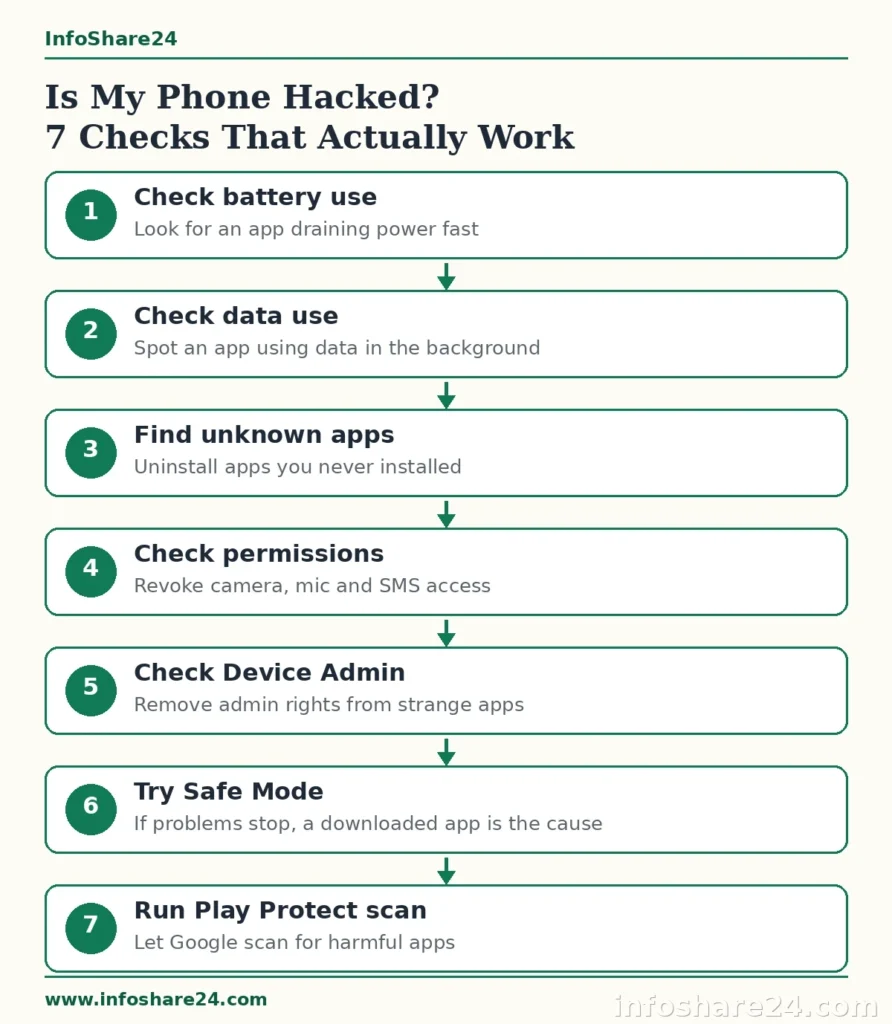
Is my phone hacked? 7 checks that actually work
If you’re asking is my phone hacked, these seven checks will give you a clear answer.
Run these in order. Steps are for Android; on iPhone the same ideas apply.
Check 1: Battery Use
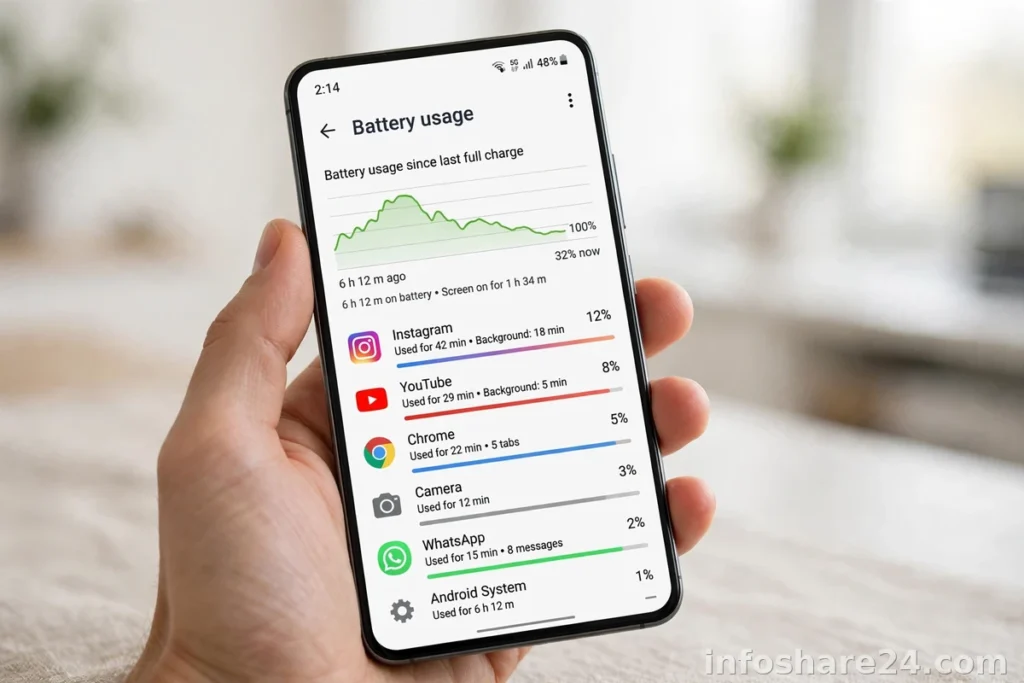
A hidden app eats power all day — your battery screen names it.
- Open Settings, then tap Battery and Battery usage to see each app’s share.
- Look for an app using a large share that you barely open. A torch app should not be near the top.
- Tap it and check background use — if it ran for hours unopened, note its name for check 3.
If no app stands out, your battery may simply be old: Android Battery Draining Fast? 10 Practical Fixes.
Check 2: Mobile Data Use
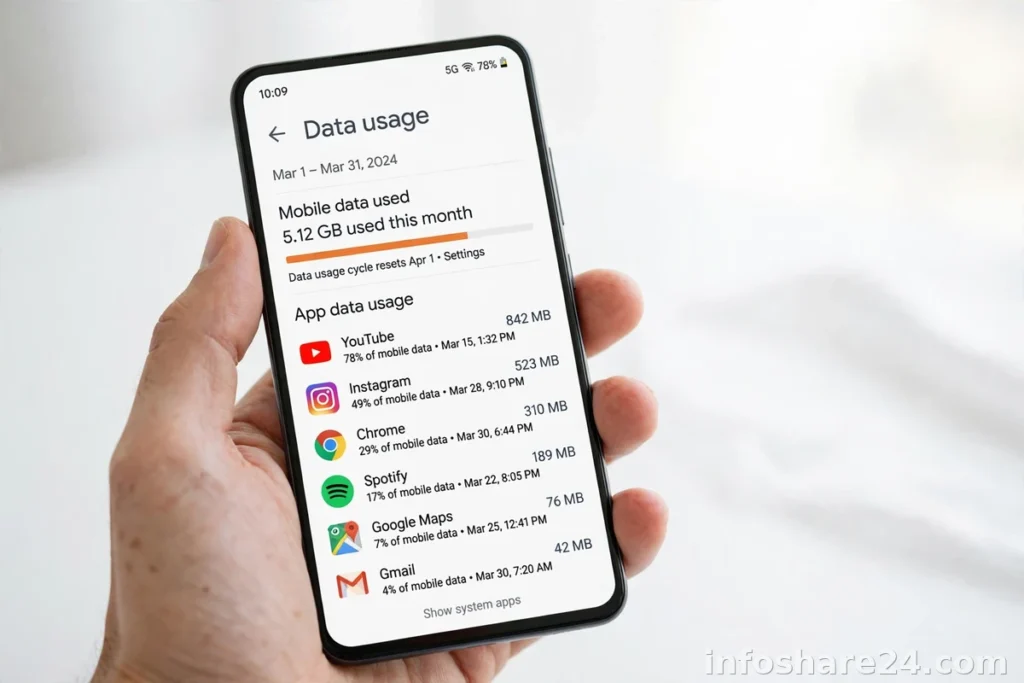
Spyware sends what it steals over the internet, showing up as data you cannot explain.
- Open Settings, then tap Network and internet and Data usage. On Samsung it is under Connections.
- Tap Mobile data usage. A maps or video app using data is normal — a calculator using hundreds of megabytes is not.
- Check the dates. If the spike began the same week the signs appeared, you have a suspect.
Check 3: Unknown Apps
Most infections arrive as an app with a plain, boring name.
- Open Settings, tap Apps, See all apps, and scroll the full list — not just your home screen.
- Look for apps you never installed, especially vague names such as “System Update” or “Free Cleaner”.
- Tap it, then tap Uninstall. If Uninstall is greyed out, the app has special rights — check 5 fixes that.
Only install from the Play Store, and check the developer and reviews first.
Check 4: App Permissions
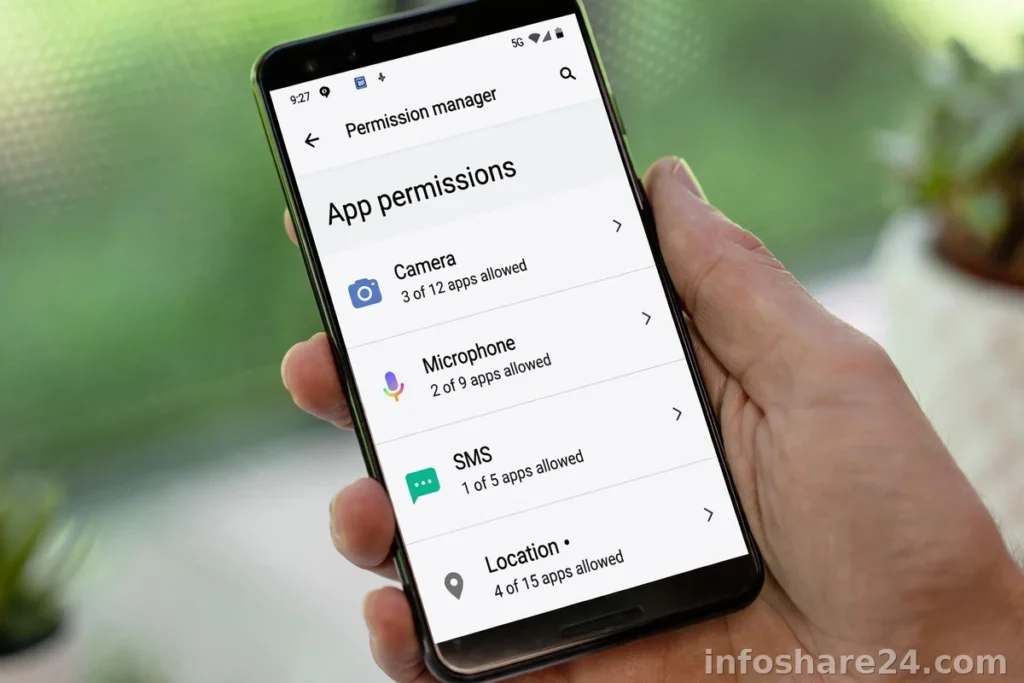
A hacked phone is dangerous because of what its apps can reach: camera, microphone, messages, location.
- Open Settings, then tap Privacy and Permission manager.
- Tap Camera, then Microphone and SMS. A camera app needs camera access; a wallpaper app does not. SMS permission lets an app read your login codes.
- Tap any app that should not have a permission and choose Don’t allow.
Check 5: Device Admin Apps
Some bad apps make themselves a “device administrator” — that greys out Uninstall in check 3.
- Open Settings and search for “Device admin apps” — under Security on most phones, Security and privacy on Samsung.
- Read the list. Only trusted apps belong here, such as Find My Device.
- Tap any app you do not recognise, turn off admin access, then uninstall it.
If only trusted apps are listed, move on to check 6.
Check 6: Safe Mode
Safe Mode runs Android with only its built-in apps, so a bad app cannot run or show ads.
- Press and hold the power button, then press and hold Power off on the screen and tap the Safe Mode prompt.
- Use the phone a few minutes. If the pop-ups and drain are gone, a downloaded app is the cause.
- Uninstall recent apps one at a time, restarting normally after each one.
If problems continue in Safe Mode, the cause is more likely the system or battery than an app.
Check 7: Google Play Protect Scan
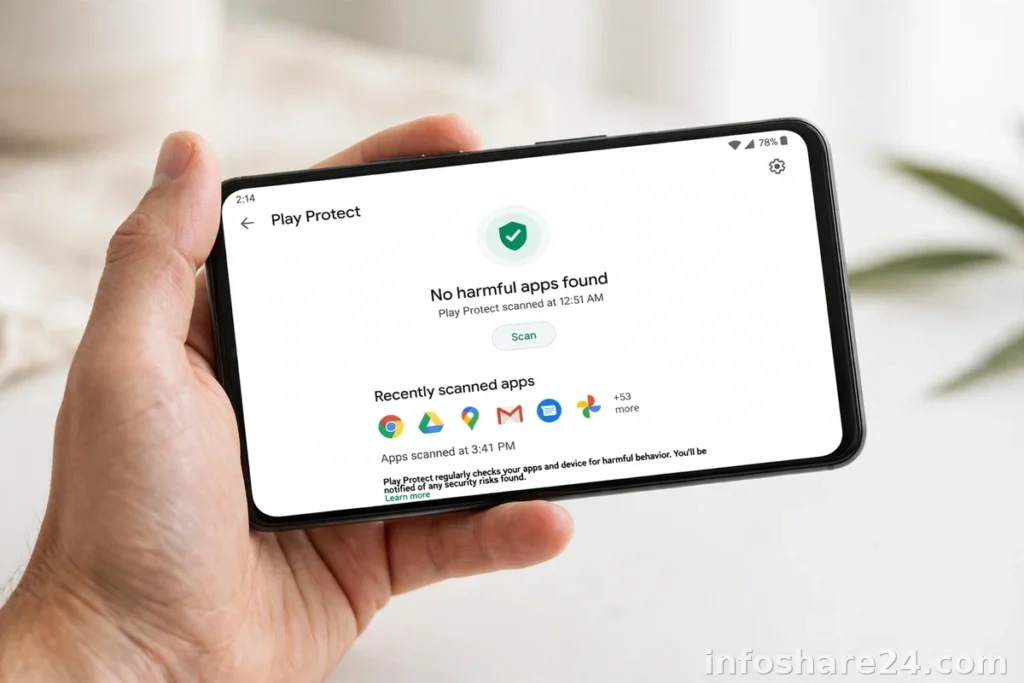
Play Protect is Google’s built-in scanner, already on every Android phone with the Play Store.
- Open the Play Store, tap your profile picture, then Play Protect.
- Tap Scan to check every installed app, including ones from outside the Play Store.
- Remove anything it flags, and keep Scan apps with Play Protect switched on.
One limit: a clean scan only means nothing matched Google’s list. Trust the other checks over it.
What to Do If the Checks Point to Hacking
If several checks point at the same app, act in this order.
- Back up photos, contacts, and files first — a factory reset erases everything.
- Change important passwords first — Google, email, banking — a different strong one for each. See: How to Create a Strong Password You Can Actually Remember.
- Turn on two-factor authentication. See: What Is Two-Factor Authentication and How to Turn It On.
- Factory reset as a last resort: Settings, System, Reset options, Erase all data. Set it up as new, without restoring an infected backup.
- Check whether your email or password has leaked. See: How to Check If Your Email or Password Has Been Leaked.
If money has moved from your bank or wallet, call your bank at once. If a message link caused it, learn the pattern: How to Spot a Phishing Message in 30 Seconds.
Frequently Asked Questions
Can someone hack my phone just by calling me?
No. A call alone cannot install malware. The danger is what comes after — a link, a fake app, or a code to dial. Never follow a stranger’s instructions.
Does restarting my phone remove a hacker?
No. A restart stops a bad app only until the phone boots again. Safe Mode (check 6) is the test; uninstalling the app is the fix.
Can iPhones get hacked too?
Much rarer — Apple only allows App Store apps. The bigger risk is a stolen Apple ID password, so use a strong password and two-factor authentication.
Should I install an antivirus app on my phone?
For most people, no. Play Protect plus these checks are enough.
Conclusion
No magic code can prove a phone is hacked — but you do not need one. Check battery and data, unknown apps, permissions, Device Admin, Safe Mode, and Play Protect. If they come back clean, your phone is almost certainly fine. If they point at one app, remove it and change your passwords.
If you ever find yourself asking is my phone hacked again, come back to these seven checks.