Have you ever found a useful article, promised yourself you would read it later, and then lost it the moment you went offline? It happens on trains, on planes, and whenever mobile data runs out. The fix is simple: save the page while you still have internet, and read it later without a connection.
There are three easy ways to do this. A browser reading list is fastest for articles you will read in the next few days. Saving as a PDF is best for pages you want to keep, print, or share. A read-later app is best for a tidy collection across phone and computer.
Before You Save: Open the Full Page First
Before saving, open the page fully while you are online, scroll to the bottom, and let images load. Some pages load more content only as you scroll, and an early save may capture only the top of the article.
Also check that you are saving the page you actually want. News sites often show a short preview, with the full article behind a “Read more” button. If the article looks complete on screen, it is ready to save. A quick read for tonight needs only a reading list entry, while a guide or work document is worth saving as a PDF, so you have your own copy if the website changes later.
Method 1: Use Your Browser Reading List
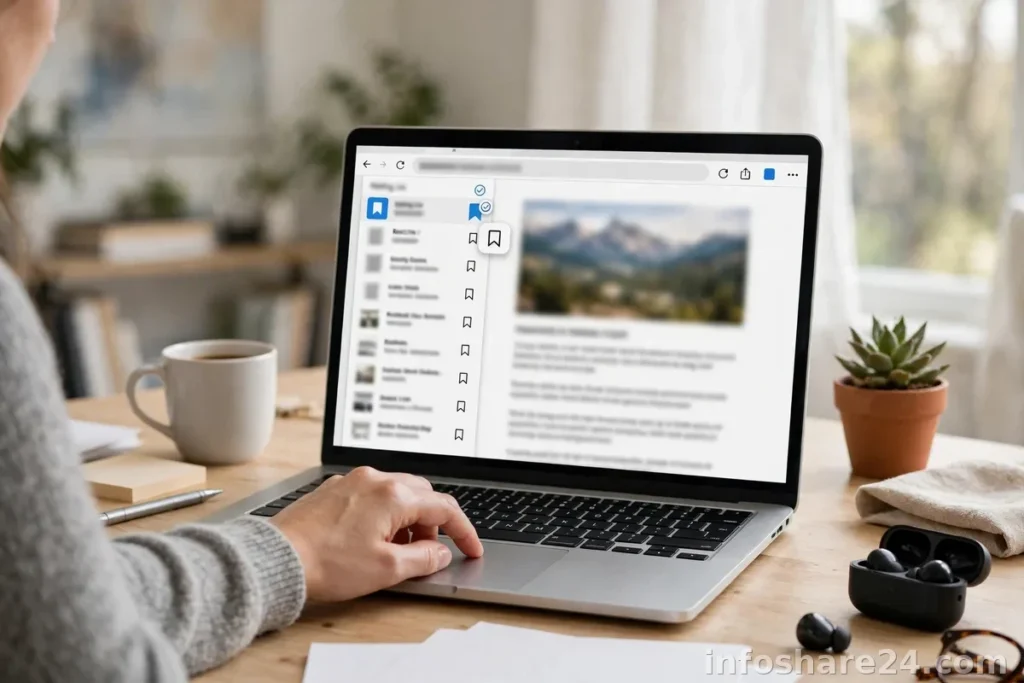
Most modern browsers have a reading list built in, and it is the quickest method. In Chrome on Android, open the page, tap the three dots menu, and tap “Add to reading list”. In Chrome on a computer, click the bookmark star, then choose “Reading list”. Edge, Firefox and Safari offer a similar option.
A reading list is different from a bookmark. A bookmark only saves the link, so you still need internet. A reading list entry downloads the article itself, so you can read it with no connection.
To read your saved pages, open your browser menu and go to Reading List, then tap the article. Most browsers let you mark articles as read or unread, and remove them when you are done. One limit: reading lists usually save a simplified, text-focused version, perfect for articles but liable to drop complex layouts, interactive maps, or videos.
Method 2: Save the Page as a PDF
Saving as a PDF gives you a real file you own. You can keep it, send it, print it, or read it in any PDF app, on any device, with no browser needed. It is the best choice for pages you want to keep for a long time.
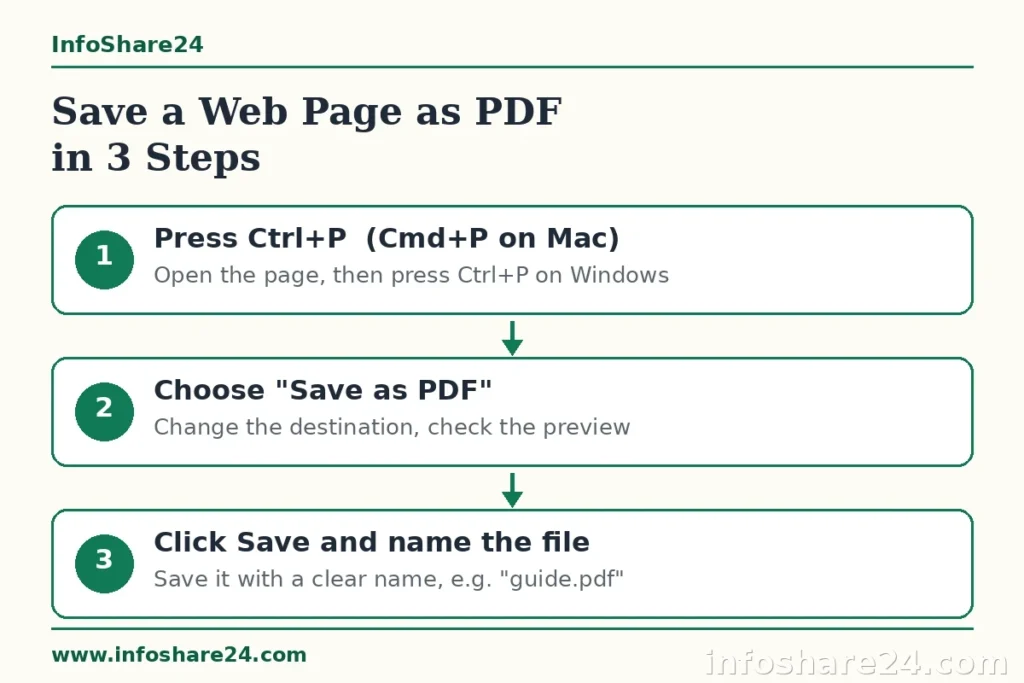
On a computer:
- Open the page and press Ctrl+P on Windows, or Cmd+P on Mac.
- Change the destination to “Save as PDF”, check the preview, and choose portrait layout.
- Click Save and give the file a clear name, such as “How to save pages offline.pdf”.
On Android:
- Open the page in Chrome, tap the three dots menu, tap Share, then Print, and choose “Save as PDF”.
- Save it to Downloads or Documents, then open it from your Files app at any time, even in airplane mode.
A PDF keeps the page as it looked when saved, but will not update if the website later corrects the article. For fast-changing news, a fresh visit is better; for a stable guide, a PDF is ideal.
Method 3: Use a Read-Later App
Read-later apps are made for people who save many articles. You send pages from your browser’s share menu, and the app tidies each one into a clean article, removing ads and sidebars. You can then read them on phone, tablet, or computer, usually offline.
Well-known options include Pocket, Instapaper, and similar services, most with a free version enough for everyday saving. Install the app, sign in, and try saving one article from your browser’s share menu. Read or archive articles within a week, and delete anything you no longer need, or your list becomes a second inbox you never open.
Read-later apps also sync across devices, their biggest advantage over a single browser’s reading list. Save an article on your computer at work, and it is waiting on your phone for the journey home. Check the app’s offline settings, though: some download saved articles automatically on Wi-Fi, while others need you to open the article once while online first. Test this with one article before a trip.
Read Your Saved Pages Offline
Once pages are saved, test one before you need it: turn on airplane mode for a minute, open your reading list, PDF, or read-later app, and check that the article opens fully, pictures included. If it opens in airplane mode, it will open on the train, on the plane, or anywhere else without signal.
Use this test to build a small offline pack before travel: the articles you most want, any tickets saved as PDFs, and a guide for your destination. Saving them the night before, on home Wi-Fi, beats trying to save them in a station with weak signal. Reading offline also means fewer distractions, with no notifications or autoplay videos.
Saving pages offline also saves mobile data, since you download once on Wi-Fi. More simple savings are here: How to Reduce Mobile Data Usage on Android.
Know the Limits of Offline Reading
Offline reading is powerful, but it is not magic. First, saved pages do not update themselves. If a news story develops, a price changes, or a guide is corrected, your saved copy stays as it was. For anything time-sensitive, check the live page again when you are back online.
Second, some content cannot be saved well. Videos usually need a separate download, if the site allows it at all, and interactive tools, such as calculators and live maps, rarely work offline. A saved article gives you its text and pictures, but not its live features. Third, respect copyright: saving a page for your own reading is normal, but republishing someone else’s full article as your own is not.
Finally, saved pages take storage, especially PDFs with many pictures. If your phone warns about storage, this guide shows a safe way to clear space without losing photos: How to Free Up Storage on Android Without Losing Photos.
Frequently Asked Questions
Is a reading list the same as a bookmark?
No. A bookmark saves only the link, so you need internet. A reading list entry downloads the article itself, so you can read it offline.
Can I save a page as a PDF on my phone?
Yes. In Chrome on Android, open the page, tap Share, then Print, and choose “Save as PDF”. Then open the file from your Files app without internet.
Do saved pages update when the website changes?
No. A saved page is a snapshot from when you saved it. For news, prices, or timetables, check the live page again online.
Can I read saved videos offline too?
Usually not from a saved page alone. Videos need a separate download, if the site offers one. A saved article gives you text and pictures, not streaming video.
What if a saved page is missing pictures offline?
You probably saved it before pictures finished loading. Open it again online, scroll to the bottom so everything loads, then save it again.
Conclusion
Saving web pages to read offline is a small habit with a big payoff. Use your reading list for quick articles, save as PDF for pages you want to keep, and try a read-later app if you save often across devices. Test one saved page in airplane mode before a trip, remember saved copies do not update, and clear out old saves sometimes. Start tonight: save one article, turn on airplane mode, and enjoy reading it with no signal.