You hand your phone to a friend to show one photo, and a moment later they are scrolling through your WhatsApp chats. The fix: lock apps on Android with a PIN or fingerprint, so even someone holding your unlocked phone cannot open the apps you choose.
There is one catch. Android has no single app lock that works the same on every phone. Xiaomi has a real built-in app lock, Samsung uses a locked folder instead, and Pixel owners are still waiting for Google’s own app lock.
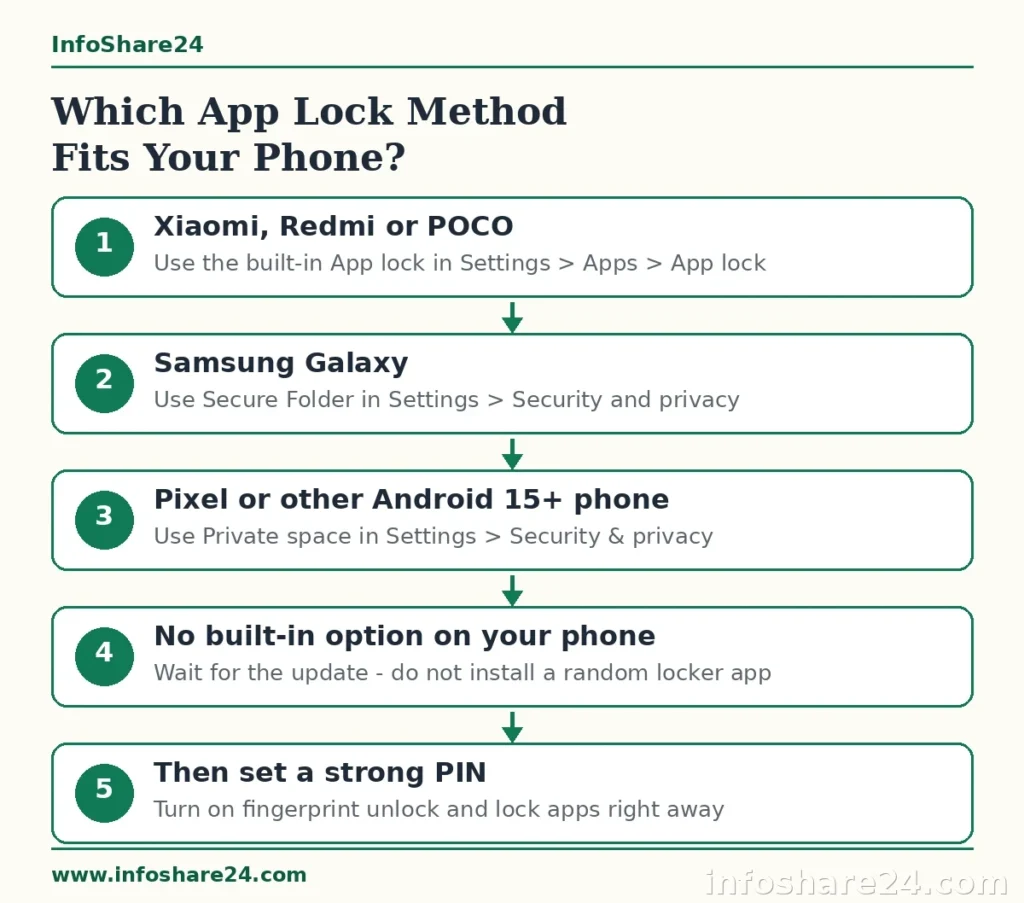
First, Pick the Right Method for Your Phone
Do not download anything yet. Start with what your phone already has: a built-in lock needs no extra permissions and shows no ads.
Lock the apps that matter most first — your banking app, WhatsApp, Photos, and Gmail. If children use your phone, also read our simple safety rules: How to Protect Your Children Online: Simple Rules for Parents.
How to Lock Apps on Android on a Xiaomi, Redmi or POCO Phone
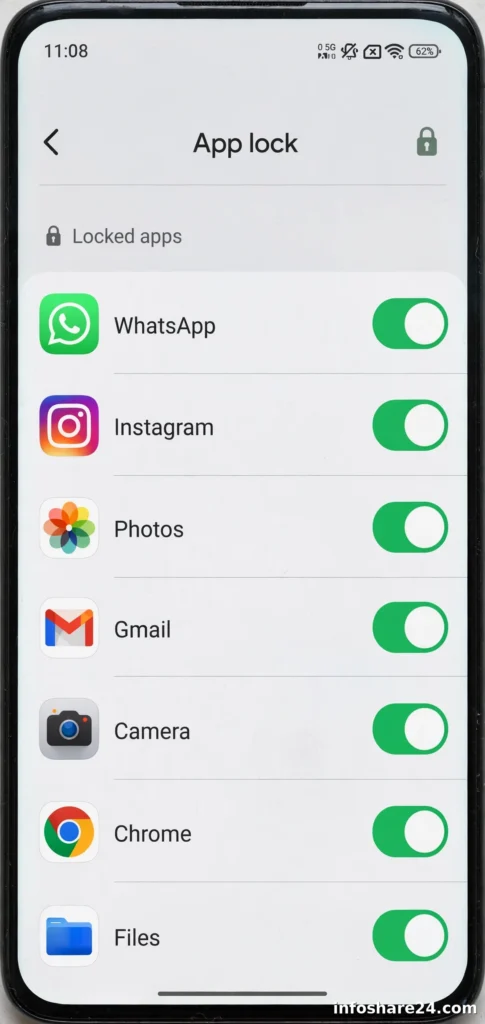
Xiaomi, Redmi and POCO phones have the best built-in option here: a true app lock that asks for a PIN, pattern, password or fingerprint every time a locked app opens.
- Open Settings > Apps > App lock. If you cannot find it, type “App lock” in the Settings search box.
- Tap Turn on and set your lock. Choose a pattern, PIN or password different from your lock screen PIN.
- Link your Xiaomi Account when asked. This is how you get back in if you forget the password.
- Turn on fingerprint unlock. Add your fingerprint or face unlock so you can open locked apps fast.
- Switch on the apps you want to lock. Tap the toggle next to WhatsApp, Photos, your banking app, and the rest.
By default, an app stays unlocked until the screen turns off. For the safest setting, in App lock tap the gear icon, then Lock settings, and choose “When device is locked or after exiting app”.
How to Lock Apps on Android on a Samsung Galaxy Phone
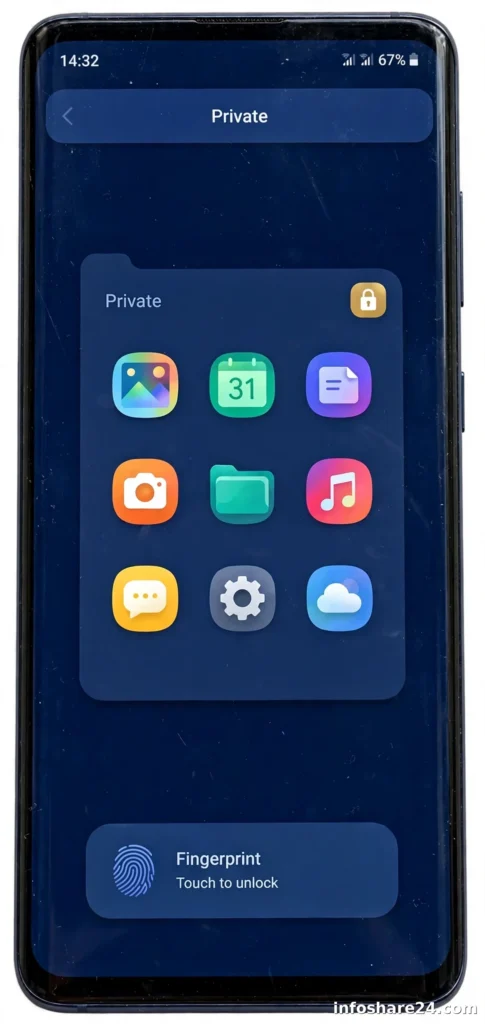
Samsung has no true built-in app lock — no switch puts a PIN on a single app. Samsung’s official answer is Secure Folder, a separate locked space protected by Samsung Knox.
Adding an app places a separate copy of it inside the folder. The copy inside is locked; the original outside is not — so use only the copy inside Secure Folder.
- Open Settings > Security and privacy > More security settings > Secure Folder.
- Sign in with your Samsung account.
- Choose a lock type. Pick a PIN, password or pattern different from your lock screen, and turn on fingerprint unlock.
- Choose what happens when the folder locks. Pick “Close all apps while locked”.
- Tap the plus icon inside Secure Folder and add your apps.
To lock it, open Secure Folder and tap Lock and exit — or set Auto lock to Immediately in its Settings.
How to Lock Apps on Android on a Pixel Phone
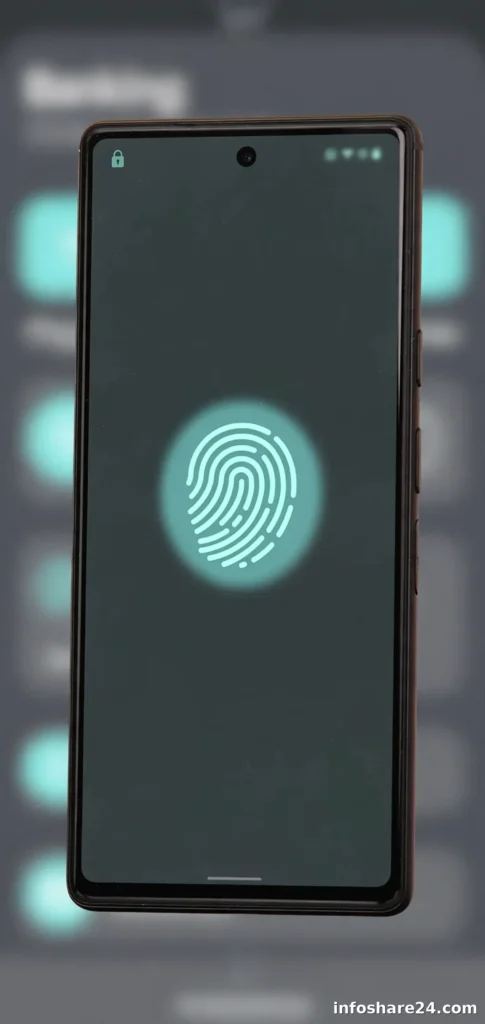
Pixel owners have the weakest deal right now: as of November 2026, there is no per-app lock on stable Android 17. Google is testing a native App Lock that asks for your fingerprint or PIN, but it only exists in beta software. It returned in the Android 17 QPR3 Beta 3 on 29 October 2026, but the stable QPR2 update from 10 November 2026 only added the developer API. A stable release is expected around March 2027.
Do not join the beta just to get it early — leaving it to return to stable means factory-resetting your phone.
Until then, use Private space, the locked area built into Android 15 and later.
- Open Settings > Security and privacy > Private space. If you do not see it, your phone may still be on Android 14 — check for a software update.
- Tap Set up and sign in with your Google Account.
- Check your lock. Private space uses your device lock.
- Add apps to Private space. Install the apps you want to protect inside Private space, or move an existing app there.
- Lock it when you finish. Tap Private space at the bottom of your app drawer and tap Lock.
Locked apps stay hidden from the app drawer.
Do Not Install Norton App Lock or Random Locker Apps
Many old guides still recommend an app you should not touch. Norton App Lock was discontinued, and support ended on 11 June 2024. It was removed from the Play Store, and Norton offers no replacement. Do not install it from an old APK file on the internet — an unmaintained security app is a risk, not protection.
The same caution applies to random “app lock” apps in the Play Store. A locker app needs deep permissions to watch which apps you open, and many free ones pay for themselves with heavy ads or data collection. Some are plain adware. If your phone has a built-in option, use it — if not, wait for the update.
If you must use a third-party locker, pick one with a long history, millions of installs, recent updates, and no ads on the lock screen. Uninstall anything that asks for permissions it does not need. A shady locker can also slow your phone down — if yours already feels slow, read How to Speed Up a Slow Android Phone Without Buying a New One before adding more apps.
Screen Pinning Is Not an App Lock
You may see Screen Pinning suggested as an app lock. It is not. It locks your phone to one app so the person holding it cannot leave that app — useful when you hand your phone to a child to watch a video — but it does nothing to stop someone opening an app. To turn it on, go to Settings > Security and privacy > More security settings and switch on Allow apps to be pinned.
If You Forget Your App Lock PIN
On Xiaomi, reset a forgotten lock with the Xiaomi Account you linked during setup. On Samsung, Secure Folder can only be reset with the Samsung account you used, and only if you turned on Reset with Samsung account during setup. On Pixel, Private space uses your device lock.
In every case, the recovery account is the key — so use a PIN you can remember, different from your lock screen PIN. For help choosing codes you will actually remember, see How to Create a Strong Password You Can Actually Remember. And turn on a second step for your Google account: What Is Two-Factor Authentication and How to Turn It On.
Frequently Asked Questions
Can I lock apps on Android without installing any app?
Yes, on most phones. Xiaomi has a built-in App lock, Samsung has Secure Folder, and Pixel phones have Private space.
Does locking an app hide it from my home screen?
Xiaomi’s App lock keeps the app visible but asks for a PIN to open it. Secure Folder and Private space hide locked apps from the app drawer completely.
Will a locked app still show notifications?
Yes, unless you hide them. On Pixel, Private space hides them automatically. On Samsung and Xiaomi, turn off lock screen notifications for sensitive apps in Settings > Notifications > Lock screen notifications.
Conclusion
To lock apps on Android, use the tool your phone already has: Xiaomi’s App lock, Samsung’s Secure Folder, or Pixel’s Private space — and wait for Google’s App Lock, expected in stable Android 17 around March 2027.
Whatever your phone, set the lock up today, use a PIN different from your lock screen, and turn on fingerprint unlock.