A Gmail account is more than an inbox. It is often the key to your phone, your photos, your documents, and the password resets for many other accounts. That is why creating it carefully matters: a few minutes of setup at the start can prevent a lot of trouble later.
You will never be asked here for any real password, and you should never share your password with anyone, not even someone claiming to be from Google. Google will never ask for your password by email or message. Keep that rule in mind throughout, and you are already safer than most people.
Before You Start: A Few Good Choices
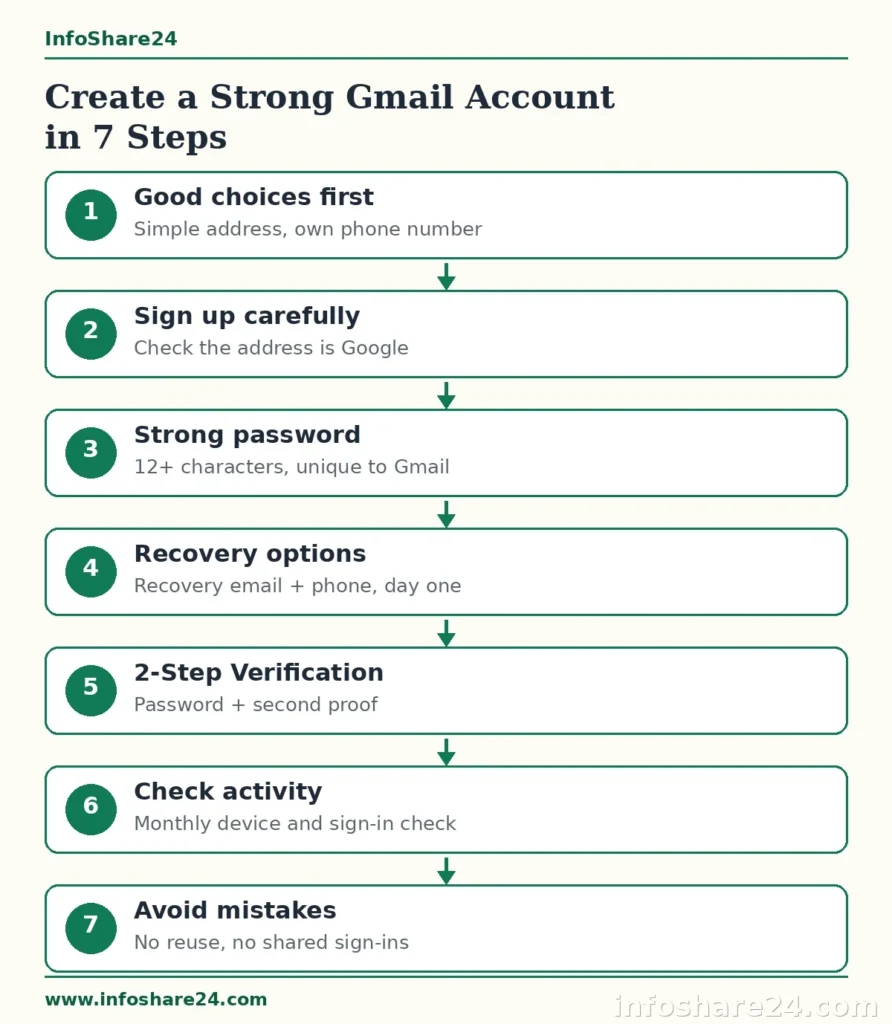
- Choose something simple, professional, and easy to spell — usually your name, or your name plus a number if your first choice is taken. It is hard to change later. Avoid addresses that include your birth year or full birth date, because those details can help someone guess things about you.
- Use a phone number you control and will keep long term, not a borrowed or temporary number you will lose. Google uses it to confirm you are a real person and to help you recover the account later.
- Finally, decide where you will keep your password. A notebook kept safely at home works, and a reputable password manager app works even better. What does not work is reusing the same password you use elsewhere, or writing it on a sticky note on your monitor.
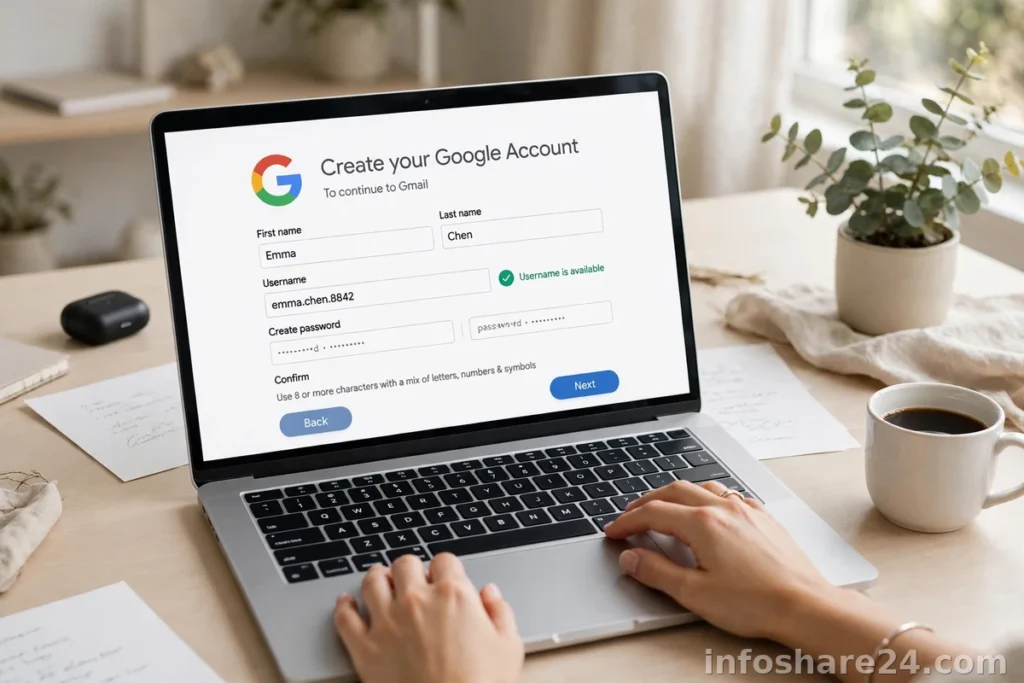
Create Your Gmail Account Step by Step
- Start by opening a web browser and going to the Gmail sign-up page, or open the Gmail app on your phone and choose the option to create a new account.
- Look carefully at the web address before you type anything: scammers create fake sign-up pages that look real. The genuine page belongs to Google, so if anything about the address or the page looks odd, stop and start again from a trusted source.
- Fill in your first and last name, choose your username, and create your password. Google will tell you if a username is already taken and suggest alternatives. Then add your phone number and a recovery email address if you have one, and complete verification by entering the code Google sends you. That code proves you control the phone number.

Choose a Strong, Unique Password
- Aim for at least twelve characters, mixing different kinds of characters, but length matters more than clever symbols.
- A passphrase of several unrelated words you can picture is often both strong and memorable — far better than a short password based on a name or birth date.
- The password must be unique to Gmail. Never reuse the password from your bank, social media, or any other site. If one of those sites is breached, attackers try the leaked password on email accounts first, because email can reset almost everything else. A password manager helps here — it remembers them so you only need one strong master password. See our guide on how to create a strong password you can actually remember.
Add a Recovery Email and Phone Number
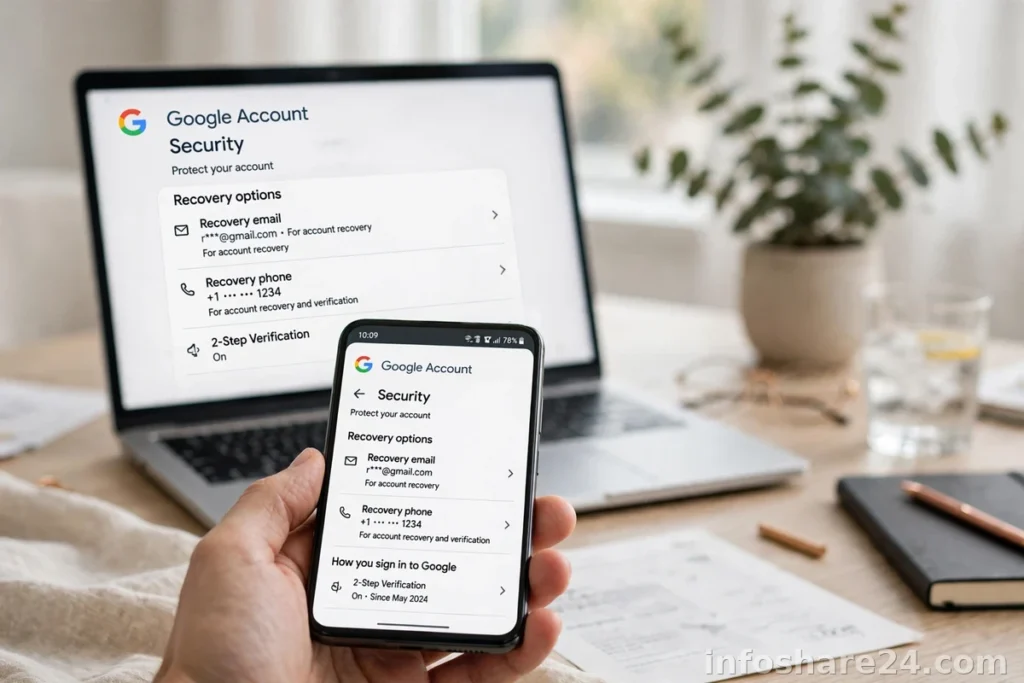
- Recovery options are your safety net. If you forget your password, or if someone locks you out, Google uses your recovery email and phone number to confirm you are the real owner. Without them, proving the account is yours becomes slow and sometimes impossible, so set them up on day one, not after a problem.
- Go to your Google Account settings, find the security section, and check that your recovery phone number and recovery email are both present and up to date.
- Your recovery email should be a different address you can still access. Keep any recovery codes Google offers stored somewhere safe offline, separate from your phone, so you can still get in if your phone is lost.
Turn On 2-Step Verification
- 2-Step Verification is the single most effective security step you can take, and it is free. With it turned on, signing in needs two things: your password, and a second proof that it is really you — usually a code sent to your phone, a prompt on a phone you already signed into, or a code from an authenticator app. Even if someone steals your password, they still cannot get in without that second step.
- To turn it on, open your Google Account, go to Security, and find 2-Step Verification. Google will guide you through choosing a second step. The prompt on your phone is easiest for most beginners: when you sign in on a new device, your phone asks if it is you, and you tap Yes. An authenticator app is a good alternative if you often travel without mobile signal.
- One warning: do not approve a sign-in prompt you did not start. If your phone suddenly asks whether you are signing in, and you are not, tap No and change your password straight away. That prompt may mean someone has your password and is trying to get in — and your No just stopped them.
Check Your Account Activity Regularly
- Good security is not a one-time setup; it is an occasional check. Once a month, or whenever something feels odd, open your Google Account security page and look at recent activity: devices signed in, recent sign-in locations, and third-party apps with access.
- If you see a device or place you do not recognise, remove it and change your password immediately.
- Watch your inbox for warning signs: password reset emails you did not request, or alerts about new sign-ins. But be careful how you respond — never click a link in a security email without checking it first, because scammers send fake security alerts leading to fake sign-in pages. Open your account settings directly instead. To practise recognising fakes, read how to spot a phishing message in 30 seconds.
Mistakes to Avoid
- The biggest mistake is reusing passwords.
- The second is ignoring 2-Step Verification because it feels like extra work — after the first week, it takes only seconds.
- The third is staying signed in on shared devices: on a friend’s phone or a library computer, always sign out of Gmail completely and never tick “remember me”.
Another common mistake is trusting every email that claims to be from Google. Real Google emails will never ask for your password, your verification code, or payment details. If an email pressures you to act urgently — “your account will be deleted in 24 hours unless you click here” — that urgency is itself a warning sign. Slow down and verify through your account settings instead.
Frequently Asked Questions
What should I do if I think someone accessed my account?
Change your password immediately from a trusted device, turn on 2-Step Verification if it is not on, review and remove unknown devices and connected apps, and check your sent emails and settings for changes you did not make.
Conclusion
Creating a strong Gmail account is simple when you do it in the right order: choose a sensible address, set a long unique password, add a recovery email and phone number, turn on 2-Step Verification, and check your account activity from time to time. None of these steps is difficult on its own, but together they make your account very hard to break into.
Your email protects almost everything else you do online, so it deserves this small investment of care. Set it up properly today, and good security will rarely need your attention again.