Do you need to send a copy of a form, a receipt, or a school note, but you do not have a scanner at home? You probably do not need to buy one. Your phone camera can do this job well, and a good scan can be saved as a PDF just like one from an office machine.
A quick photo often comes out tilted or shadowy. A real scan straightens the page, cuts away the background, and sharpens the text, using a built-in tool or a free app on Android and iPhone.
Why Your Phone Is Already a Good Scanner
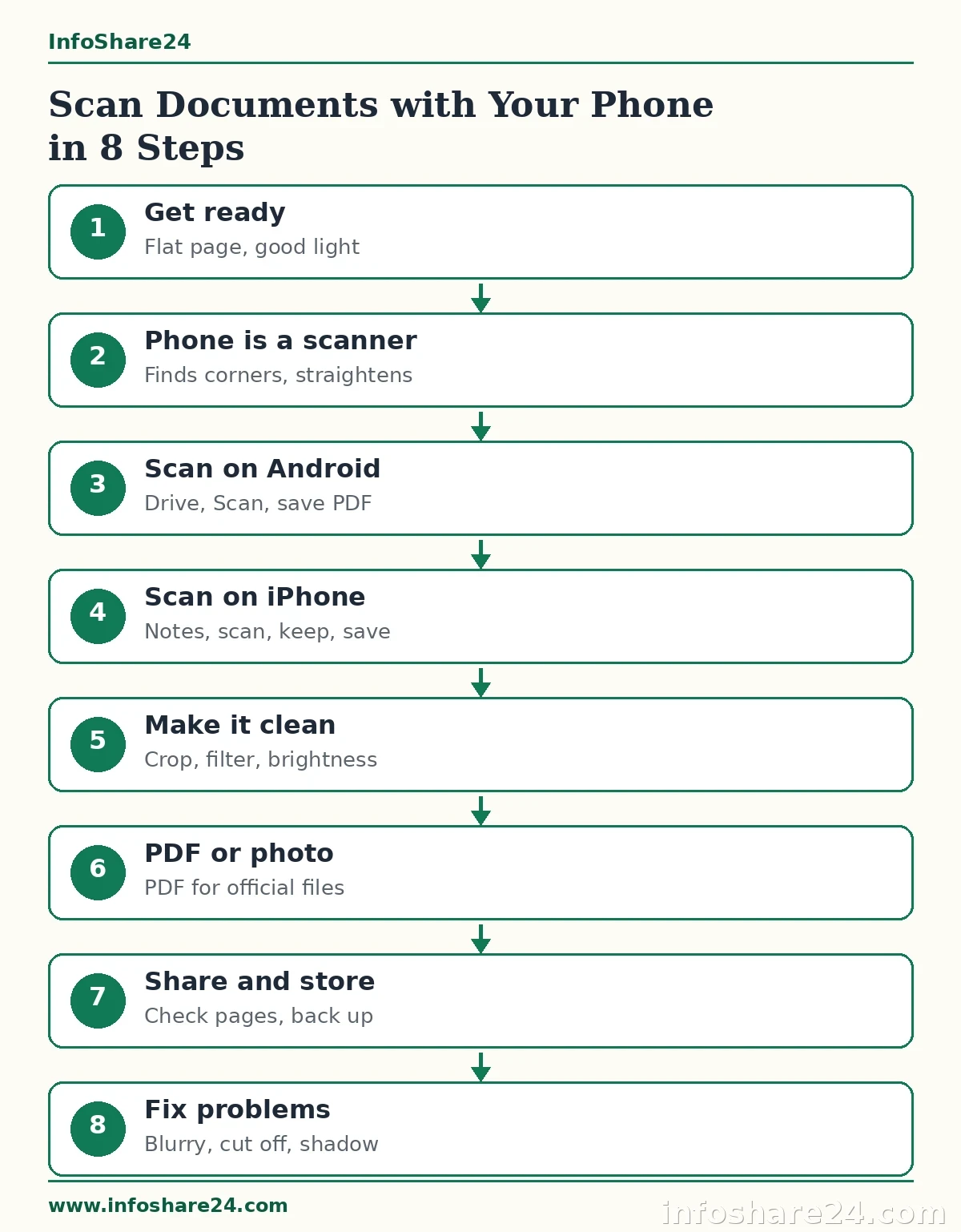
- A modern phone camera captures small print clearly, and scanning apps fix common photo problems automatically. When you point your camera at a page, the app finds the four corners, straightens the image, and removes the desk around it. It also adjusts brightness so white paper looks white and dark text stands out.
- You can also scan old photos and letters as a digital backup, which is safer than keeping only a paper copy that can fade or get lost.
- You do not need an expensive phone: a mid-range phone gives a good result if the light is decent and you hold it steady.
Before You Start: Get the Page Ready
A little preparation takes only a few seconds and makes a big difference:
- Place the document on a flat surface with a plain, contrasting background. A dark table works well for white paper, because the app can see the edges more easily.
- Flatten curled paper with your hand first.
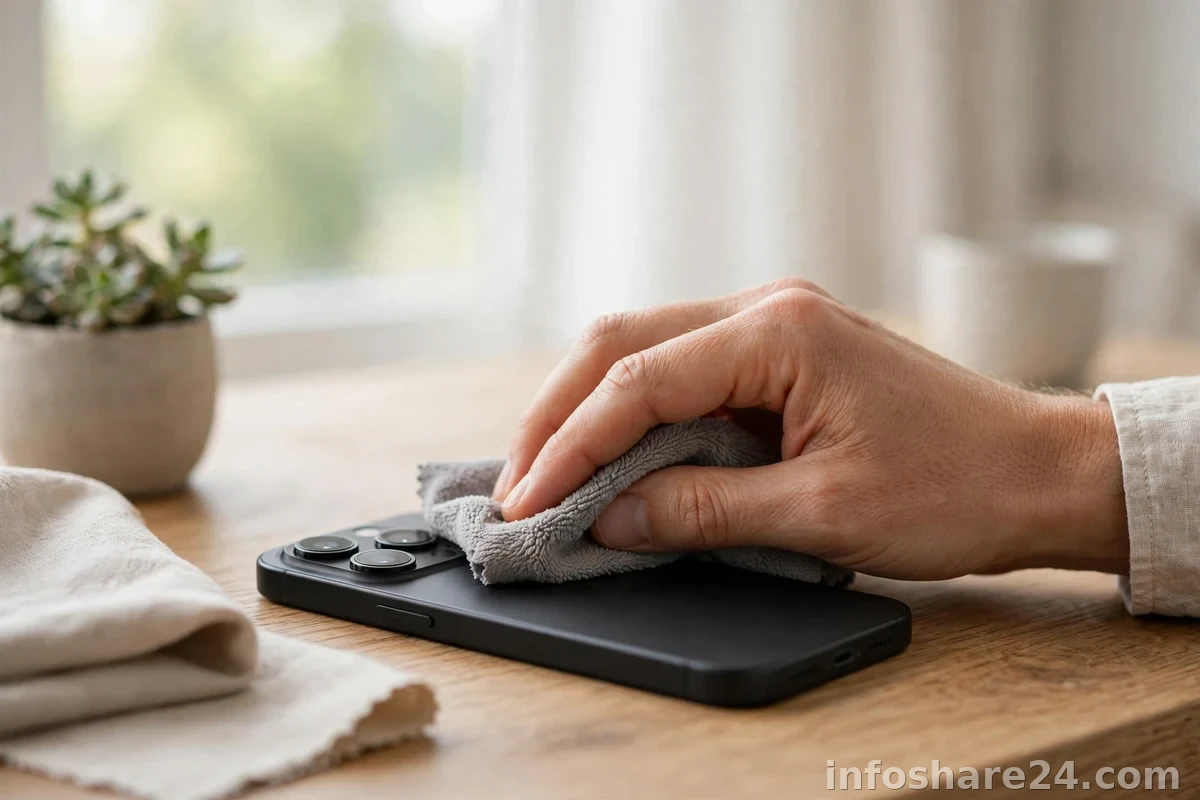
- Use bright, even light. Daylight near a window is ideal; a single lamp from one side creates shadows. Remove pens and other objects from the frame, and wipe your camera lens. A smudged lens is a common cause of blurry scans.
How to Scan on Android
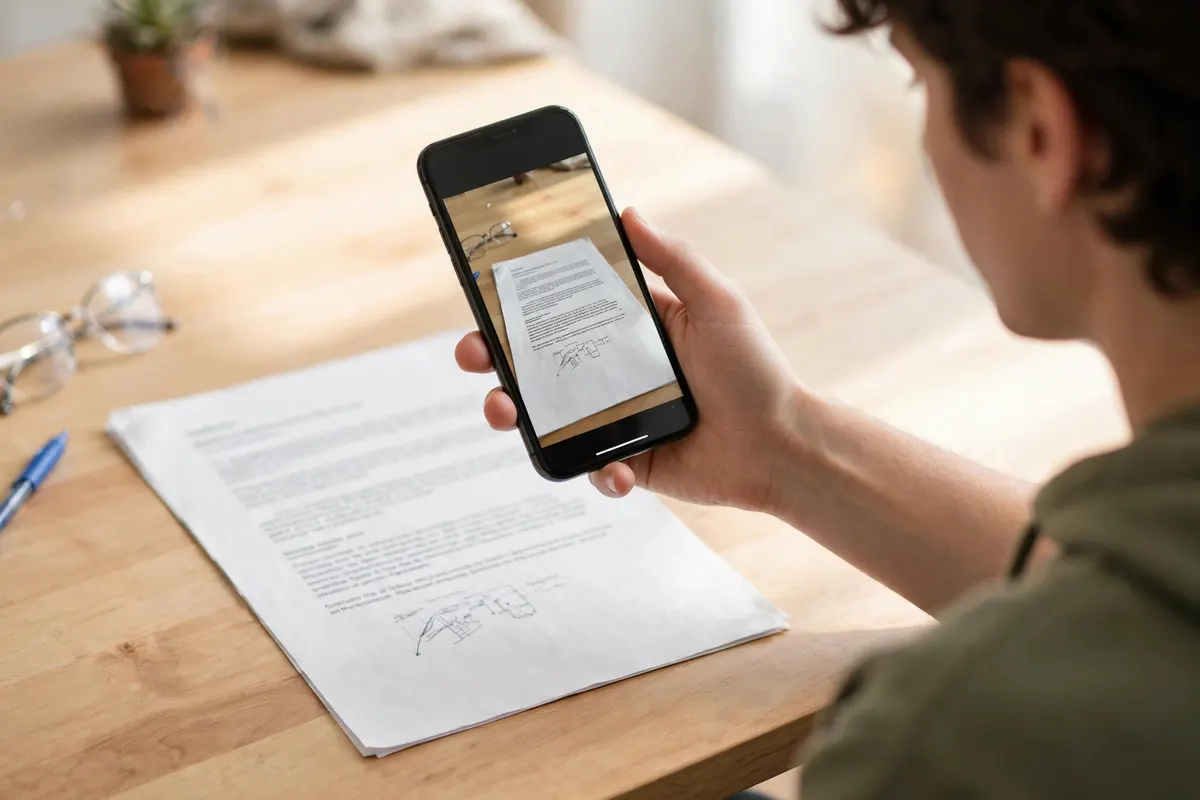
- On many Android phones, you can scan without installing anything new. Open Google Drive, tap the plus button, and choose Scan. The app will usually find the edges by itself. Tap capture, check the preview, and tap Save to store it as a PDF, adding more pages with the plus button before saving.
- If your phone lacks that option, try a free app such as Microsoft Lens or Adobe Scan. The steps are similar: choose Document mode and point the camera at the page.
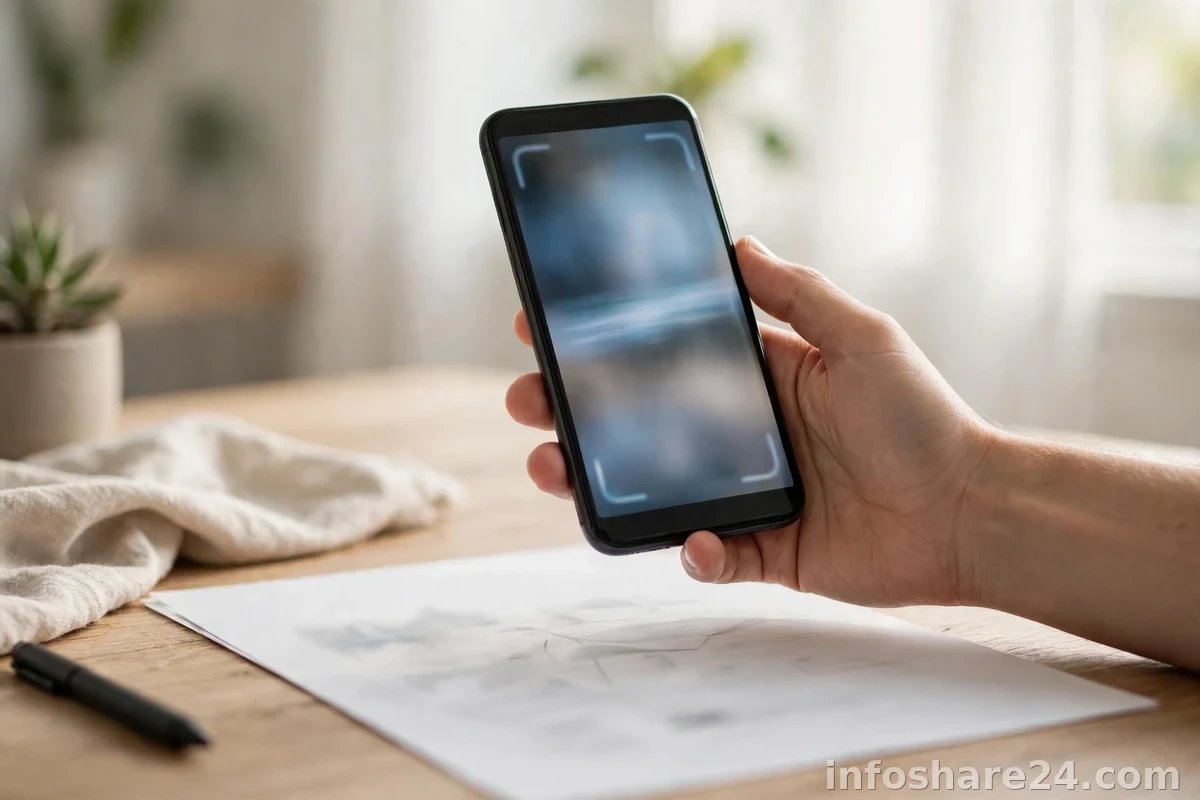
- Hold the phone directly above the page, keep both hands steady, and wait for it to focus. If the preview looks blurry, retake the photo.
How to Scan on iPhone
- iPhone users have a built-in option in the Notes app. Open Notes, start a new note, tap the camera icon, and choose Scan Documents. The iPhone will often capture the page automatically when it detects the edges; if not, tap the shutter yourself.
- Drag the corners to adjust the crop, tap Keep Scan, add more pages the same way, then tap Save to store them as one PDF.
- You can also scan from the Files app: open Files, tap the three-dot menu, and choose Scan Documents. Whichever method you use, check the preview after each page, so you do not discover a cut-off corner after sending the file.
How to Make the Scan Look Clean
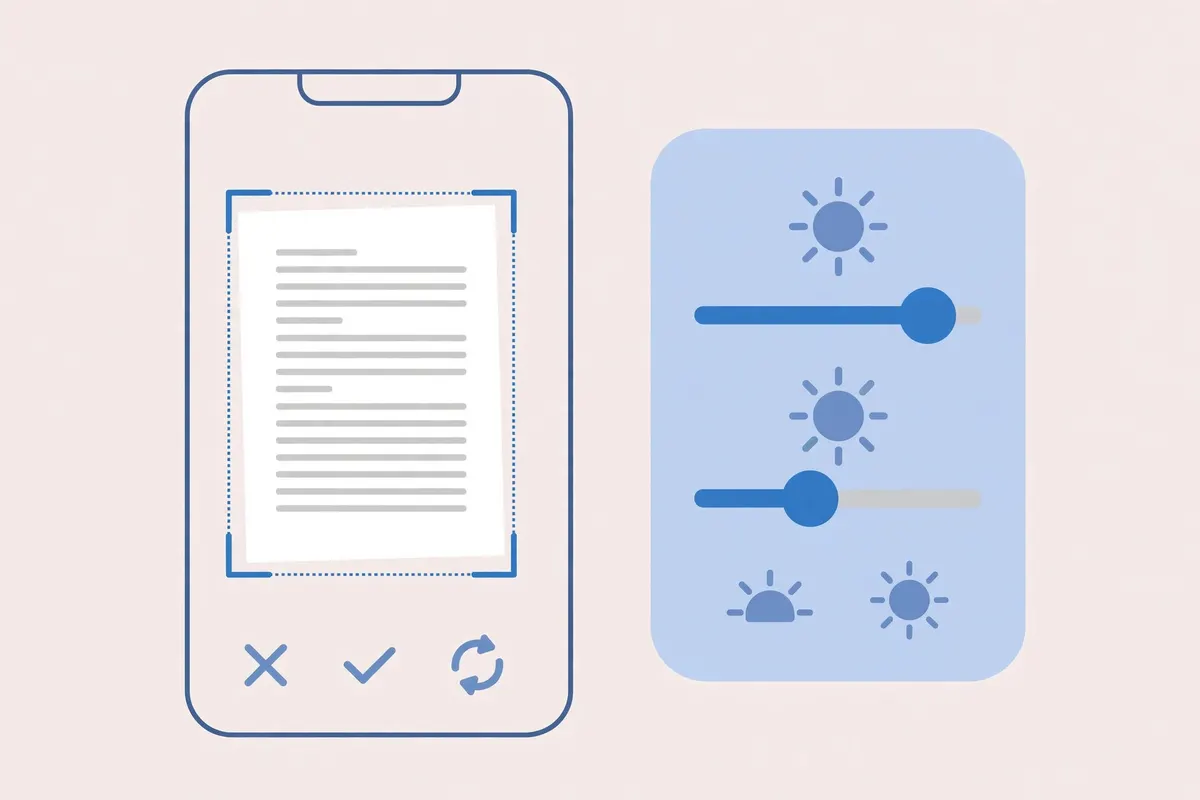
- After capturing the page, most apps show an editing screen, where a rough photo becomes a clean scan, so do not skip it.
- First, check the crop: drag the corners onto the corners of the paper, leaving a tiny margin so no text is cut off. Next, choose a filter. For a normal printed document, Black and White or Greyscale often gives the sharpest result and a smaller file. For colour stamps, signatures, or photos, keep it in Colour.
- Then adjust brightness and contrast if the page still looks grey. Finally, rotate the page if it is upside down or sideways.
Save It the Right Way: PDF or Photo?
- For most documents, PDF is the better choice. A PDF keeps all the pages in one file, in the right order, and looks the same on almost any phone or computer. It is also the format most offices and online forms ask for.
- A JPG is fine for a single image shared quickly, such as a receipt in a chat message. For anything official, such as a form, a certificate, or a multi-page contract, a PDF is neater.
- Give the file a clear name: “electricity-bill-october.pdf” is easier to find later than “scan.pdf”. If space becomes a problem, our guide on how to free up storage on Android without losing photos explains how to clear space safely while keeping your pictures.
How to Share and Store Your Scans Safely
- Once the scan looks good, you can send the PDF by email, chat app, or website upload. Before sending, open the file and scroll through every page. Check that no page is missing, upside down, or cut off, and that the text is readable when zoomed in.
- For storage, keep a copy somewhere safe, not only in a chat. Google Drive or iCloud backs up your scans even if you lose your phone.
- If you need to move files between devices, see how to transfer files between phone and computer easily for simple methods. Be careful with sensitive documents such as identity cards: send them only to the person who needs them, privately.

Common Scanning Problems and Easy Fixes
- If the scan is blurry, clean the lens, hold the phone steadier, and add more light. Do not use digital zoom, which softens the image; move the phone closer instead.
- If part of the page is cut off, move the phone higher so the whole page is in the frame, then crop it properly. If the page looks yellow or grey, change the filter to Black and White or adjust the brightness. If there is a shadow, move the light or your position.
- If the app cannot find the page edges, try a darker background. Glossy paper can reflect light, so tilt the phone slightly to remove glare.
Frequently Asked Questions
Is a phone scan accepted as an official document?
In many cases, yes, if the scan is clear, complete, and in the requested format, usually PDF. For some legal purposes, an original may still be required, so check the form’s instructions.
Which free app is best for scanning documents?
For most people, the built-in tools are enough: Google Drive scan on Android and Notes scan on iPhone. For text recognition, Microsoft Lens and Adobe Scan are solid free choices.
Can I scan a document without an internet connection?
Yes. Scanning works offline in almost all apps, since it only uses your camera. You need the internet only to share or back up the scan.
How do I scan many pages into one PDF?
Capture each page in the same session and save them together. Most apps let you add pages with a plus button. Save only when every page has been checked.
Why does my scan look worse than the original photo?
This usually happens when a filter is too strong, the crop cuts into text, or the file was compressed when shared. Check the scan first, and send the PDF itself, not a screenshot.
Conclusion
Scanning with your phone camera is a small skill that saves time again and again. You need no scanner or special equipment: with a flat page, good light, a steady hand, and a quick check of crop and brightness, you can produce a clean PDF that is easy to read, share, and store. Start with a single-page letter, keep your scans named clearly and stored safely, and you will always have the papers you need on your phone.