Most children meet the internet early, through a shared tablet, a school device, or a family phone. That can feel worrying for parents, especially when new apps appear every few months. Keeping children safer online does not require expert knowledge or strict surveillance. It mostly comes down to a few clear rules, sensible settings, and regular, calm conversations.
Start With a Simple Family Plan

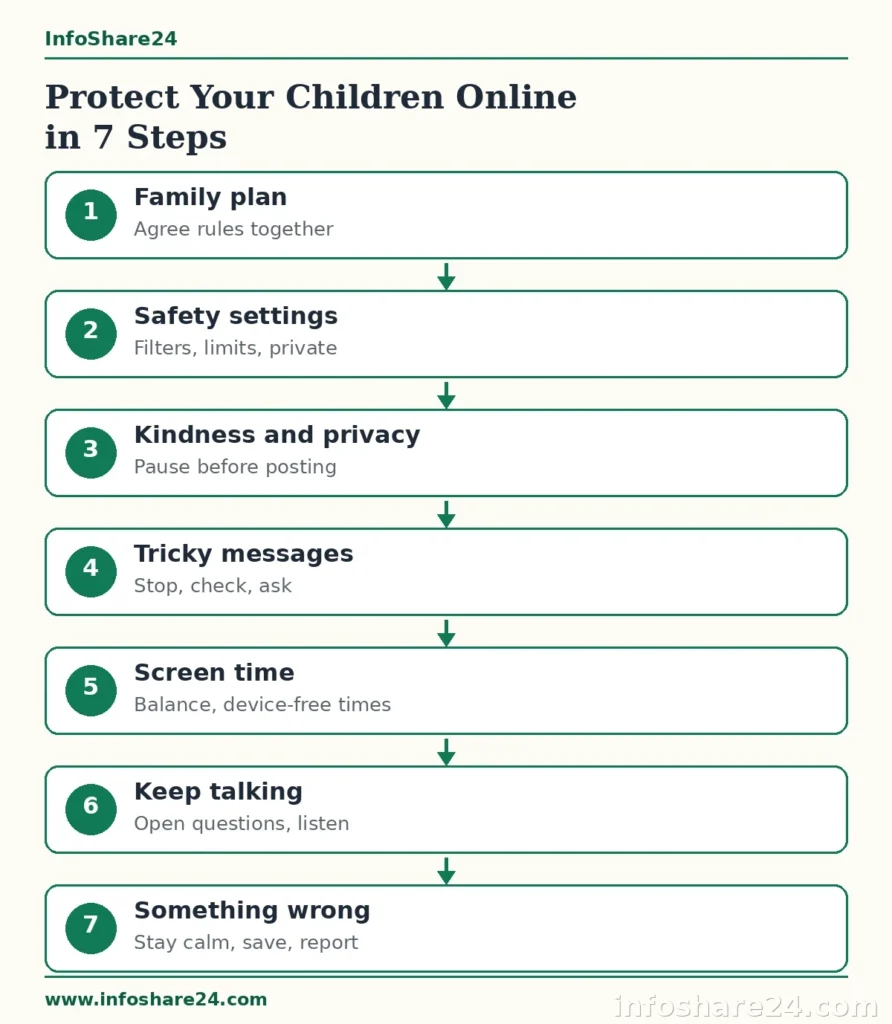
Children feel safer when they know what is expected. Sit down together, away from screens, and agree on a plan. Keep it positive: it is about enjoying the internet safely, not about punishment. Agree on which apps are fine, when devices are used, and where, for example in shared rooms.
Write the plan down and put it somewhere visible, like on the fridge. When children help make the rules, they are more likely to follow them and to tell you when something goes wrong.
A simple plan might include:
- Devices stay in shared family spaces, especially in the evening.
- Ask before downloading a new app, game, or joining a new group.
- Never share full names, school names, addresses, or photos that show where you live. If anything online feels strange, worrying, or uncomfortable, tell a trusted adult straight away.
Set Up Safety Settings Together
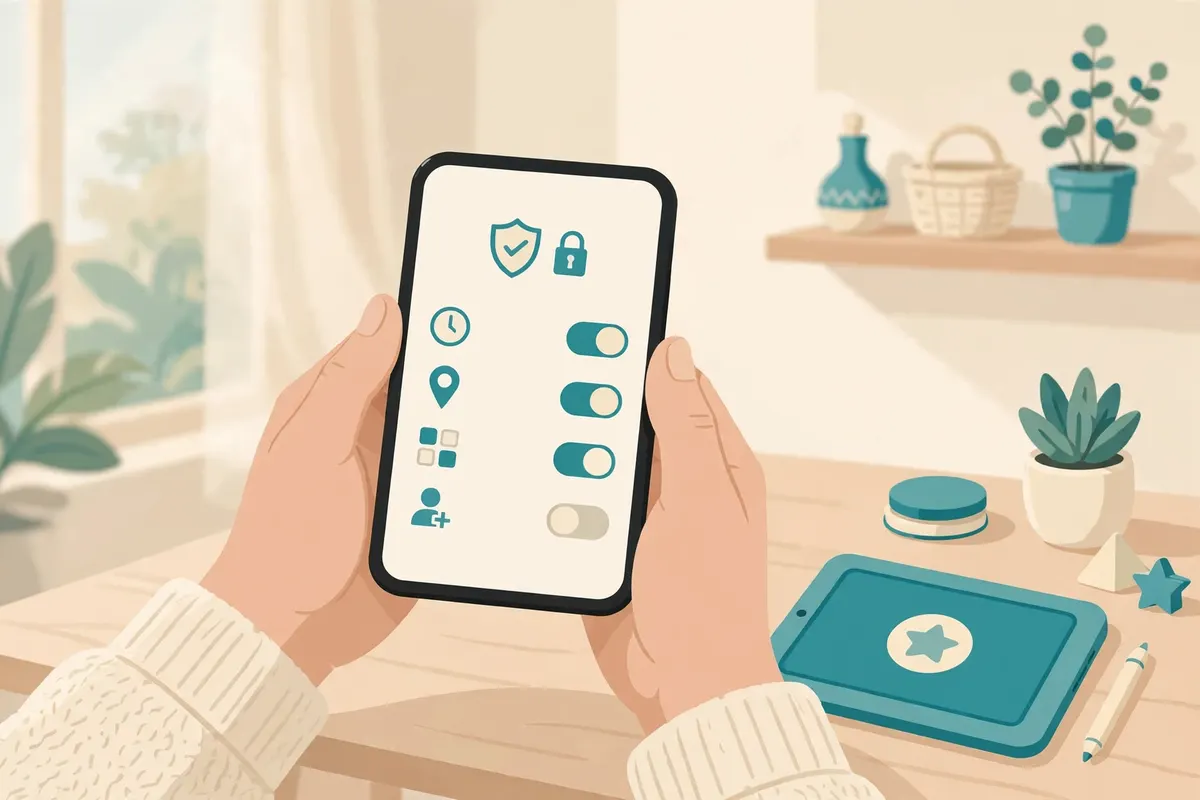
- Safety settings are not a replacement for conversation, but they are a helpful safety net. Most phones, tablets, consoles, and popular apps have built-in parental controls. Use them together with your child, so they understand why they are there.
- Start with the basics. Turn on age-appropriate filters in app stores, set screen-time limits, and require approval before in-app purchases. On video apps, choose restricted or supervised modes. Set accounts to private, turn off location sharing for apps that do not need it, and limit who can send friend requests.
- Do not forget the accounts themselves. Children should not reuse one easy password everywhere, and neither should adults. Our guide on how to create a strong password you can actually remember explains a simple method for the whole family. Where an app offers extra sign-in checks, turn them on for adult accounts that manage a child’s device. Check settings again after app updates, because updates sometimes reset privacy options.
Teach the Basics: Kindness, Privacy, and Pausing
- Teach children to pause before they post, share, or reply, and to ask: “Would I be happy if my teacher or the whole school saw this?” If not, it is better not to send it.
- Talk about kindness online as you would at school or at home. Words on a screen can hurt just as much as words spoken face to face. Encourage children to be polite and to tell you if they see someone being unkind.
- Privacy is another basic habit. Explain that personal details are like a home address: you do not hand them to everyone you meet. That includes real names in usernames and photos in school uniform. Help younger children choose safe usernames that do not give away their real name or age.
Help Them Spot Tricky Messages and Requests
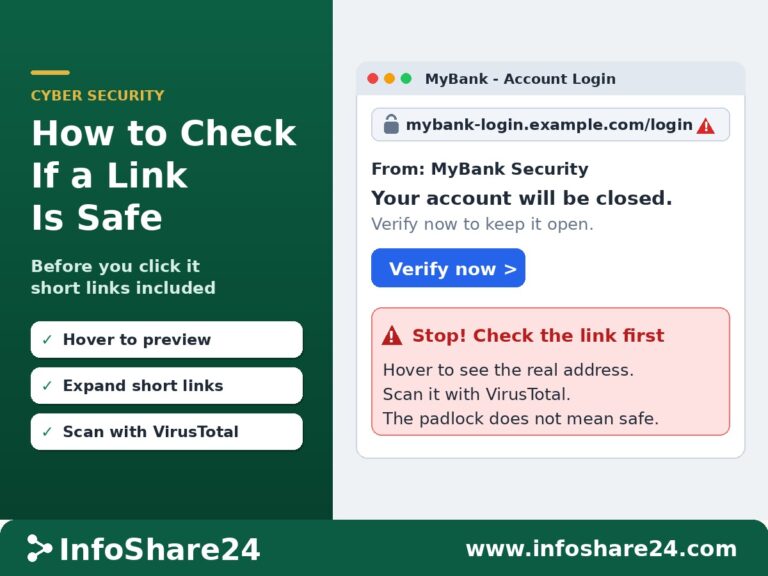
Many online risks arrive as friendly-looking messages: a prize you supposedly won, a link from someone pretending to be a friend, or a request to move a chat to a private app. Children need to know that not every message is what it seems, and that it is always okay to check with you first.
Teach a simple habit: stop, check, and ask. Stop before clicking a link or downloading a file, check whether you were expecting it or it pressures you to act quickly, and ask a trusted adult if you are unsure. Practise this together using our guide on how to spot a phishing message in 30 seconds.
Be especially clear about three rules:
- Never share passwords, codes, or personal details because a message asks for them.
- Never send photos or personal information to someone you only know online.
- Never agree to keep an online conversation secret from your parents or carers.
Explain these rules calmly, without scary details. Children remember clear actions better than frightening warnings. They apply even if the message seems to come from a friend.
Agree on Screen Time Without Daily Battles
- Screen time causes more family arguments than almost any other online topic. A fixed number of hours is less important than balance: time for sleep, schoolwork, play, and being outdoors, as well as time on screens. When screens crowd out sleep or homework, adjust the routine together.
- Build screen time into the day rather than fighting over it all day. Agree on device-free times, such as during meals and one hour before bed, and on charging devices outside bedrooms overnight. Offer enjoyable alternatives too.
- If your child loves a game or app, show interest. They will accept limits more willingly from a parent who understands what they like.

Keep Talking, Even When It Feels Awkward

- The most important safety tool is not an app or a setting. It is a child who feels able to talk to you. If children fear they will lose their device or get into trouble, they may hide problems instead of asking for help. Make it clear that telling you about something worrying will not automatically mean losing their phone or tablet.
- Ask open questions regularly, not only after a problem. “What have you enjoyed online this week?” works better than “Is everything okay?” Listen without interrupting, and thank them for telling you, even if what they share worries you.
- Teenagers may want more privacy, and that is normal. Respect growing independence while still agreeing on basics: who they talk to, what they share, and what to do if someone pressures them.
What to Do When Something Feels Wrong
- Even with good rules, something worrying can still happen. If your child sees something upsetting, receives an unwanted message, or feels pressured online, stay calm and reassure them that they did the right thing by telling you.
- Do not delete everything straight away. Save screenshots if it is safe and helpful, block the account if needed, and report it inside the app. Schools can also help if classmates are involved. If someone asks a child for personal photos or tries to meet them, take it seriously and seek advice from a trusted local authority.
- Afterwards, talk about what happened in simple terms and adjust settings or rules if needed. Children recover better when they are not blamed for it.

Frequently Asked Questions
At what age should I start talking about online safety?
As soon as a child starts using a connected device, even for games or videos. Keep it short, positive, and suited to their age.
Are parental controls enough on their own?
No. Controls are a useful safety net, but children can find ways around them. Conversation, clear rules, and regular checks work best together.
Should children have their own devices?
There is no single right age. It depends on the child, the reason for the device, and whether your family can agree on rules and checks. A shared family device is a good first step.
What if my child already saw something upsetting online?
Stay calm, listen, and reassure them. Block and report if needed, and talk to their school or a local support service if you are worried.
Conclusion
Protecting children online does not mean banning the internet or watching every message. It means a simple family plan, sensible settings, strong passwords, pausing before clicking or sharing, and conversations that stay open and calm. Start with one step today: agree on three family rules, check one device’s settings together, or ask your child what they enjoy online.