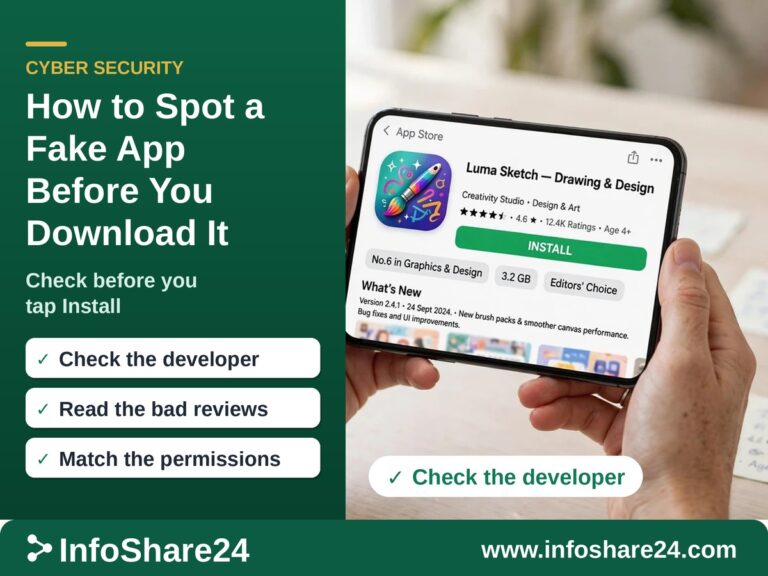
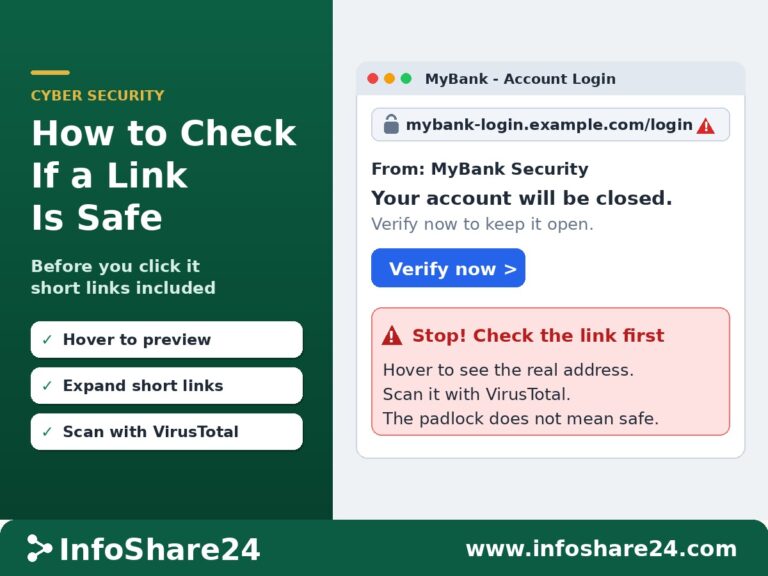
Facebook holds years of your life: photos, messages, friends, birthdays and sometimes even payment details for ads or games. That is exactly why hackers want it. A hacked Facebook account is not just embarrassing. The hacker can message your friends asking for money, post scams in your name, and use your photos to trick people who trust you.
The good news is that most Facebook hacks are preventable. Hackers usually guess weak passwords, steal them from fake login pages, or use a device you forgot to log out of. Work through the five steps below and your account will be harder to steal.
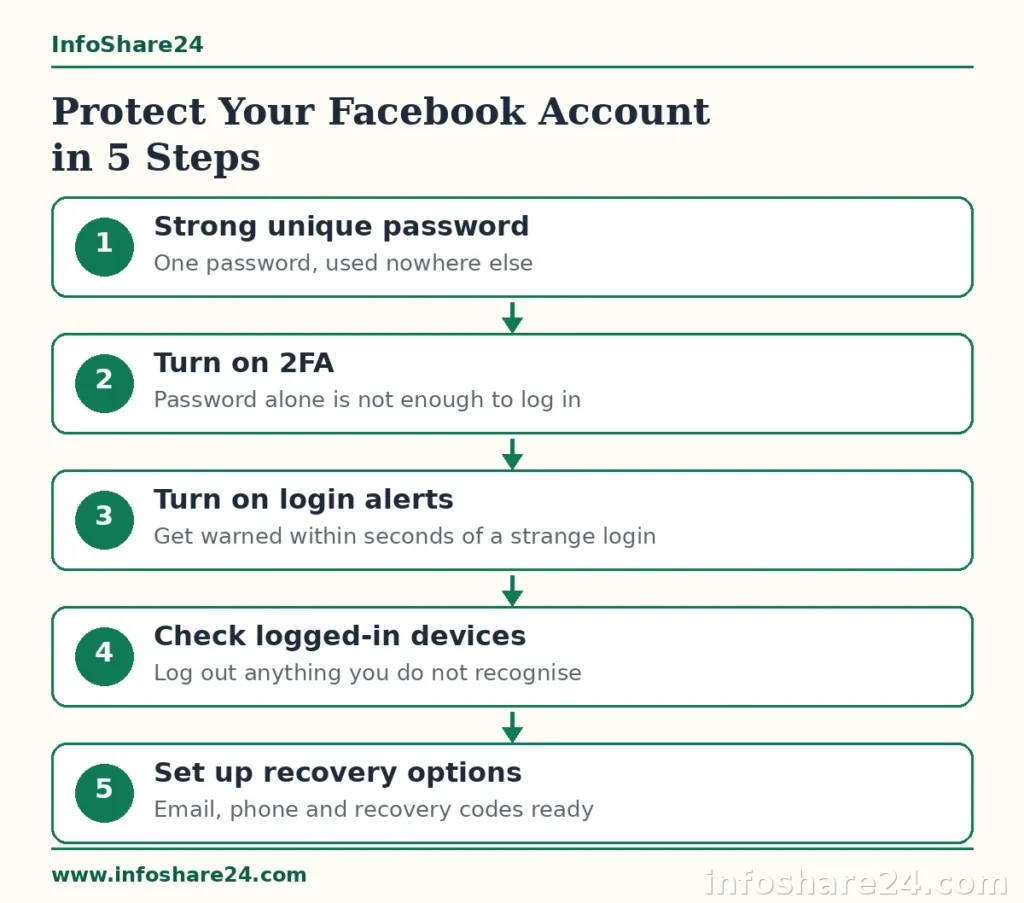
Why Facebook Accounts Get Hacked
The most common cause is password reuse. If you use the same password for Facebook and another site, and that other site leaks its passwords, hackers try the same combination on Facebook. This is called credential stuffing, and it works depressingly often because so many people reuse passwords.
The second common cause is phishing: a fake message or page that looks like Facebook and asks you to log in. Once you type your password into the fake page, the attacker has it. These messages often claim your account will be closed, or that a video of you has gone viral, because urgency makes people click before they think.
The third cause is simply staying logged in everywhere. Every old phone, shared computer and borrowed tablet that still holds your Facebook login is a door into your account. If any of those devices is lost, sold or borrowed by the wrong person, your account goes with it.
Step 1: Use a Strong, Unique Password
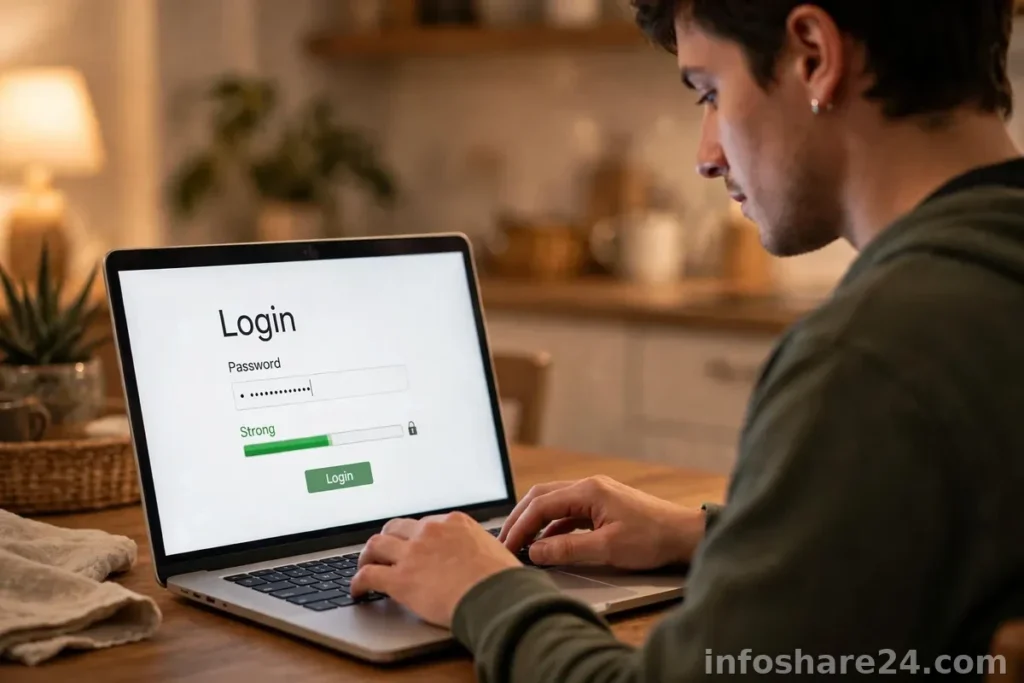
- Use a password you do not use anywhere else. That single rule stops credential stuffing completely. If another site leaks, your Facebook password is still safe because it exists nowhere else.
- Make it at least 12 characters, mixing upper and lower case letters, numbers and symbols. A sentence you can remember works well: take the first letters of a phrase only you know, add a number and a symbol, and you have something both strong and memorable. Avoid birthdays, phone numbers, your children’s names and the word “facebook” itself, because attackers try those first.
- Change it now if you have used the same one elsewhere, or if you have ever typed it into a suspicious page: go to Settings, then Password and security, then Change password.
If you want a deeper guide to building passwords you can actually remember, read How to Create a Strong Password You Can Actually Remember.
Step 2: Turn On Two-Factor Authentication
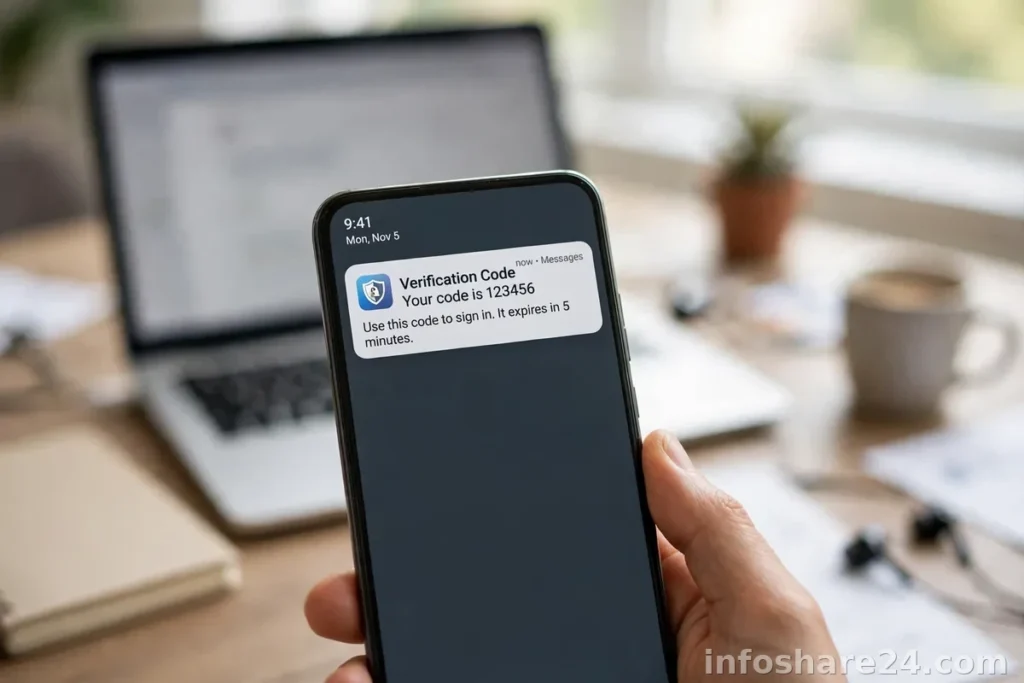
Two-factor authentication, or 2FA, is the single most powerful protection you can add. With 2FA on, your password alone is not enough to log in. Facebook also asks for a second code, usually from an authenticator app or a text message, that only you can see. Even if a hacker steals your password, they are locked out without that code.
- Open the Facebook app, go to Settings, then Password and security, then Two-factor authentication.
- Choose an authenticator app — it works even without mobile signal and is harder to intercept than a text message. Facebook will also offer a text message code or a security key.
- Follow the on-screen steps, and save the recovery codes somewhere safe, such as a notebook at home. Those codes are your way back in if you lose your phone.
For a full explanation of how 2FA works on any service, see What Is Two-Factor Authentication and How to Turn It On.
Step 3: Turn On Login Alerts
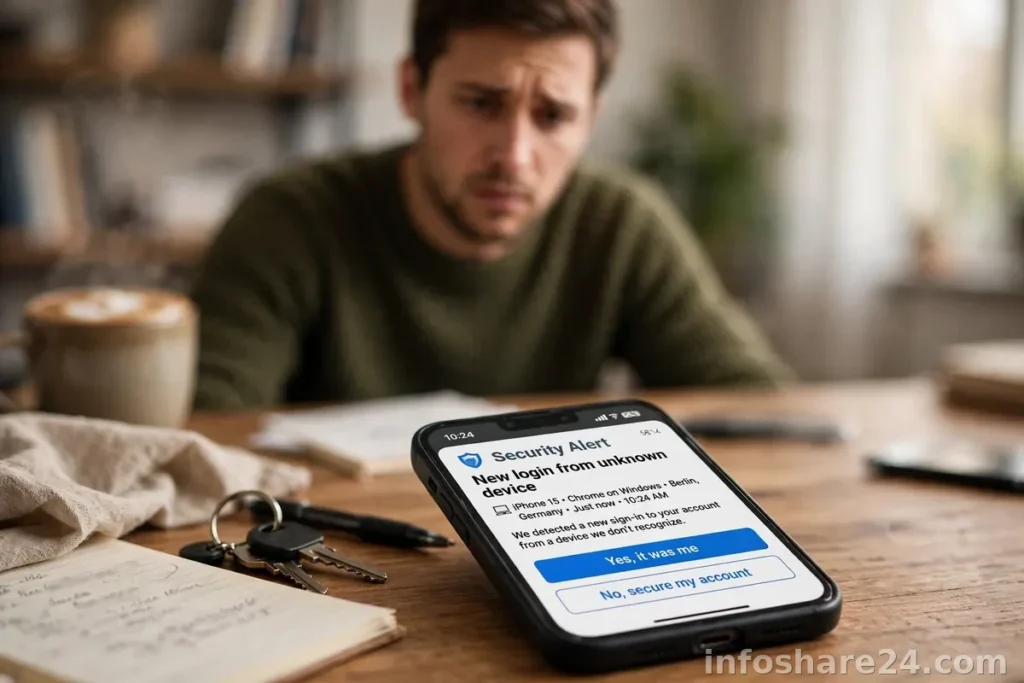
Login alerts are your early warning system. When someone logs in from a device or place Facebook does not recognise, Facebook can send you a notification, an email, or both. That warning often arrives within seconds, giving you time to act before the intruder does damage.
- Go to Settings, then Password and security, then Login alerts.
- Turn on both app notifications and email — if a hacker changes one contact method, the other may still reach you.
- If an alert arrives and you do not recognise the login, act at once: tap the option that says it was not you, and change your password immediately. If you recognise the login, for example you just signed in on a new phone, you can dismiss it.
Step 4: Check Where You Are Logged In
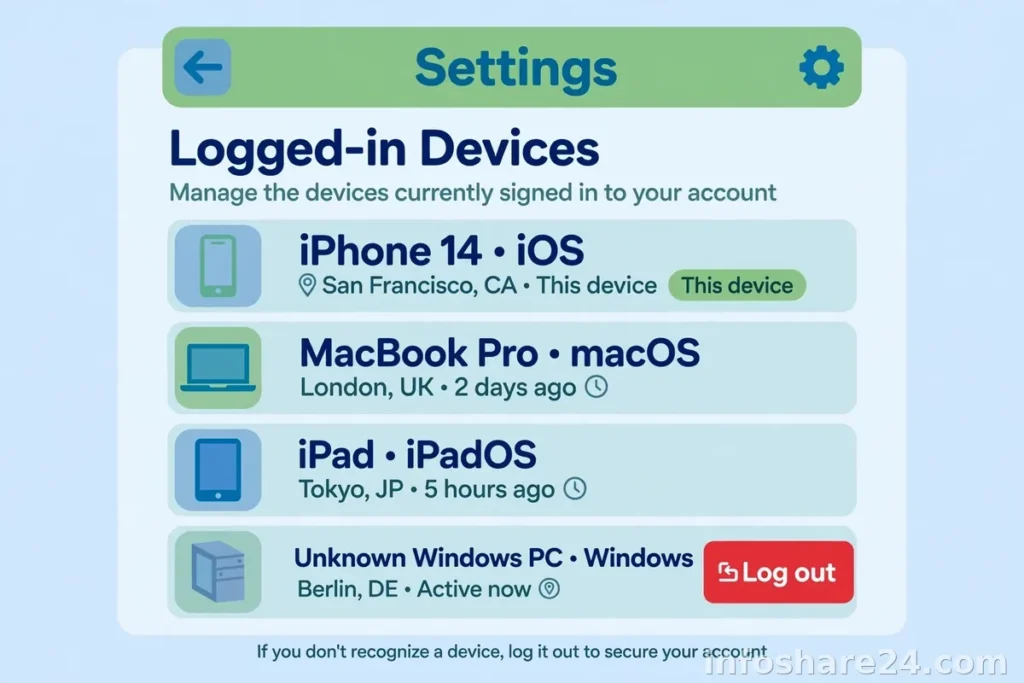
- Go to Settings, then Password and security, then “Where you’re logged in.” You will see each device, its type, its rough location, and when it was last active.
- Log out of anything you do not recognise, and anything you no longer use: old phones you sold, a friend’s laptop, a computer at a shop or office. You can log out of a single device or all other devices at once.
- If you see a device in a city you have never visited, treat it as a break-in: log it out, change your password, and check that your email and phone number have not been changed.
Step 5: Set Up Recovery Options Before You Need Them
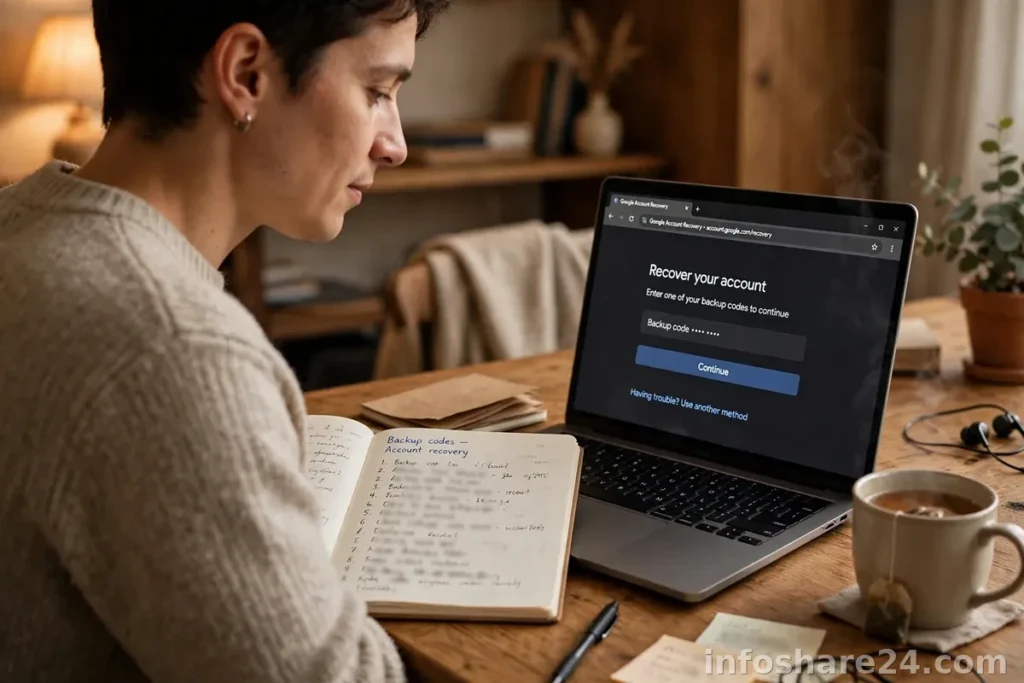
Recovery options decide whether you can get your account back after a hack. The worst time to discover a missing recovery email is when you are already locked out. Set these up today, while everything works.
- Confirm that your current email address and phone number are added to your account, and that you can open that email inbox and receive texts on that number.
- Save the recovery codes Facebook gave you when you turned on 2FA somewhere offline, not in a photo on the same phone you use for Facebook.
- Consider adding trusted contacts if Facebook offers them in your region: friends who can help confirm your identity if you lose access.
What to Do If Your Account Is Already Hacked
Act fast, in this order:
- Try to change your password from a device you trust. If you cannot log in, use Facebook’s “Forgot password” flow and the hacked-account recovery page, and follow the identity checks carefully.
- Review “Where you’re logged in” and log out of all other sessions.
- Check your email, phone number and trusted contacts for changes the hacker may have made, and remove anything unfamiliar.
- Warn your friends quickly, since hackers often message your closest contacts asking for money within the first hours.
- Turn on 2FA and login alerts before you relax. Recovering the account without adding protection just invites the same hacker back.
Frequently Asked Questions
Does 2FA make logging in annoying?
Only slightly. You enter a code when you log in from a new device, but Facebook remembers devices you trust, so everyday use on your own phone feels the same.
I got a login alert for my own login. Should I worry?
No. A new phone, a new browser, or a trip to another city can all trigger an alert. If the time and place match your own activity, dismiss it. Worry only when you do not recognise the login at all.
Conclusion
Protecting your Facebook account comes down to five habits: a password used nowhere else, two-factor authentication switched on, login alerts watching your back, a regular check of logged-in devices, and recovery options set up before trouble arrives. Together they close the doors hackers actually use.
Do the first two today, password and 2FA, even if you leave the rest for the weekend. Your photos, messages and friends are worth fifteen minutes of setup.