You have seen them everywhere — on restaurant tables, posters, tickets, and business cards. A QR code is a square barcode that a phone camera can read in a second, opening a website, joining a Wi-Fi network, or showing a message without anyone typing a long address.
The best part is that making one costs nothing. You do not need an app or any technical skill — a free website does the whole job in under a minute. More than a million people search for a QR code generator every month, and this guide shows you the simple, safe way to make your first one.
What Can a QR Code Hold?
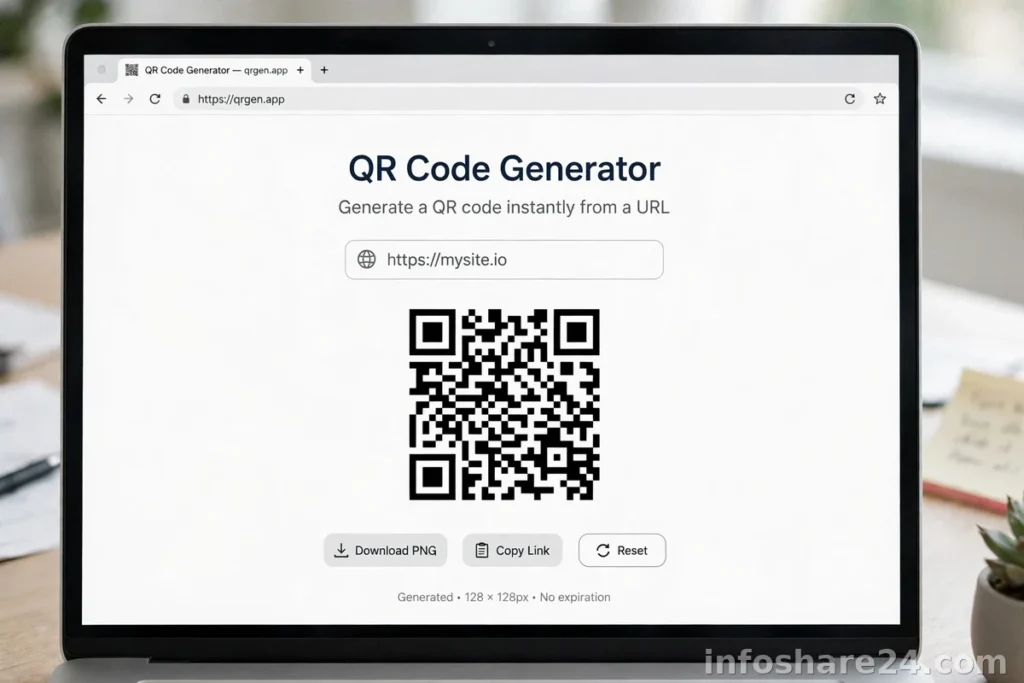
Before you make one, decide what it should do — that choice decides what you type into the generator.
A website link. This is the most common use. Point it at your shop page, a menu, a video, a form, or your social media profile, and anyone who scans it lands on the right page in one tap.
A Wi-Fi network and password. A Wi-Fi QR code lets guests join your network by scanning it, instead of asking you to spell out a long password.
Plain text. A code can hold a short message, such as opening hours or a few lines of instructions. Keep it short — a long text makes a dense code that is harder to scan.
Contact details. A code can carry your name, phone number, and email address, so someone can save you as a contact by scanning it. It also works well on a CV: link a code to your portfolio or LinkedIn profile, as in this guide: How to Make a Professional CV in Microsoft Word.
A short, clean link works best. Double-check your link letter by letter — one wrong character sends people to the wrong page.
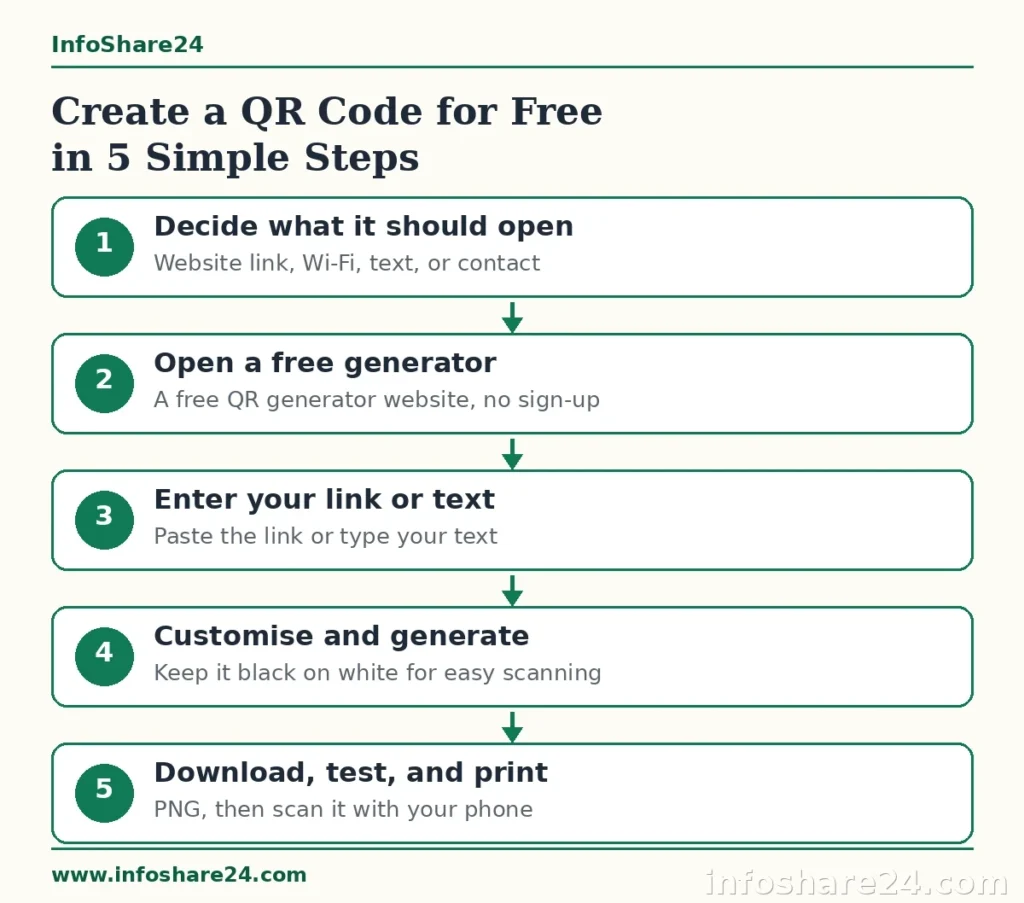
Create Your QR Code in 5 Steps
- Decide what the QR code should open. Pick one thing — a website, a Wi-Fi network, a short message, or your contact details.
- Open a free QR code generator website. Widely used free options include QRCode Monkey, QR Code Generator, and Canva’s free QR code generator. A basic code costs nothing and needs no account. If a site asks for payment before it shows your code, close it and try another one.
- Enter your link or text and choose the type. Paste your website address, or pick the Wi-Fi, text, or contact option and fill in the boxes. Use the full link, starting with https://.
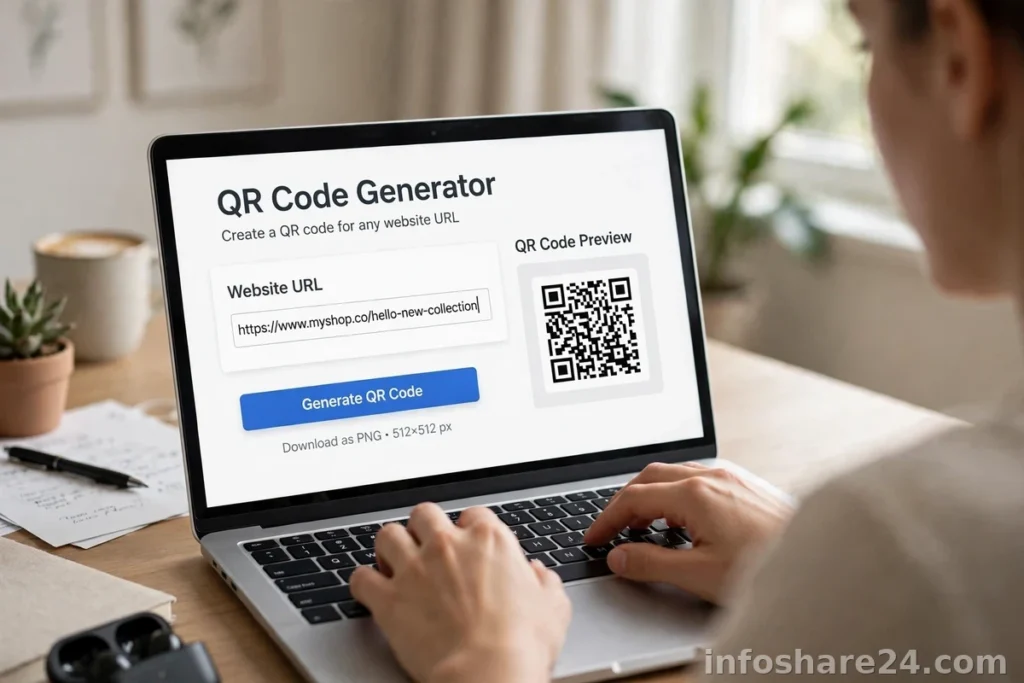
- Customise the look — but keep it scannable. You can change the colour or add a small logo in the middle, but keep the code dark on a light background, and never cover the three square markers in the corners — the camera needs them to read the code. If in doubt, keep it plain black on white: it scans best.
- Download it as a PNG. Click the download button and save the file with a clear name, such as shop-menu-qr.png. PNG keeps the edges sharp, which matters when you print it. Keep a copy — if you lose it, you will have to make the code again.
Share Wi-Fi Without Typing the Password
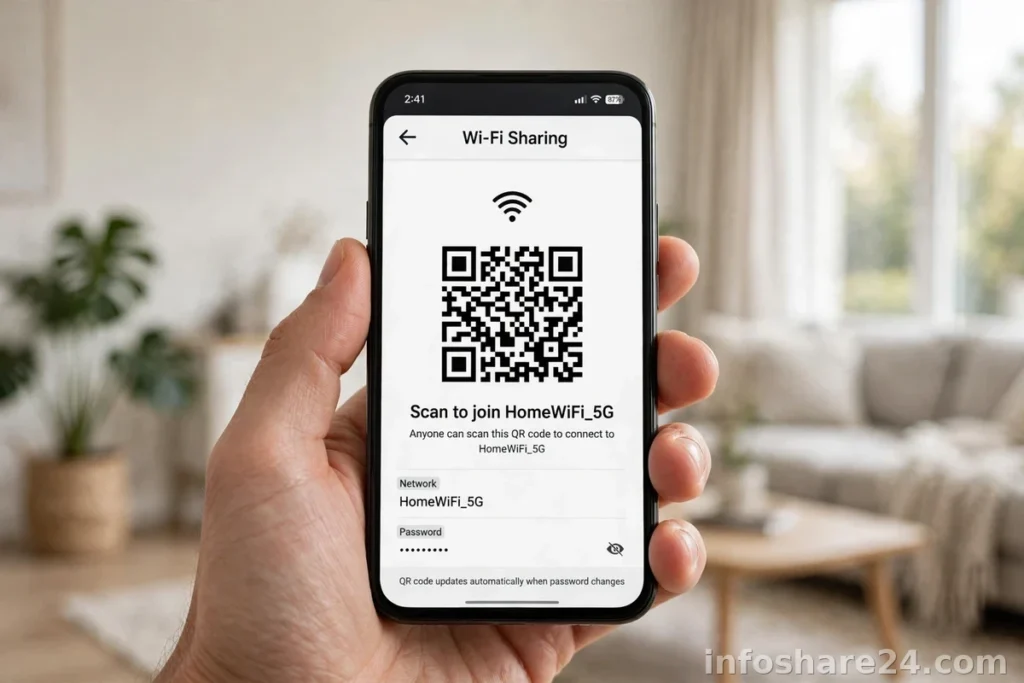
One of the handiest uses of a QR code is sharing Wi-Fi: show guests a code instead of reading out a long password letter by letter.
Many Android phones can show one from Settings: open Wi-Fi, tap your network, then tap Share. If your phone cannot do this, a free QR generator can make one instead — choose the Wi-Fi type and enter the network name and password exactly.
Only share a Wi-Fi code with people you trust — anyone who scans it joins your network. If you change the password later, make a fresh code. For staying safe on shared networks, see: How to Stay Safe on Public Wi-Fi: A Simple Guide for Cafes, Airports and Hotels. If your password is weak, fix it first: How to Create a Strong Password You Can Actually Remember.
Test It Before You Share It or Print It
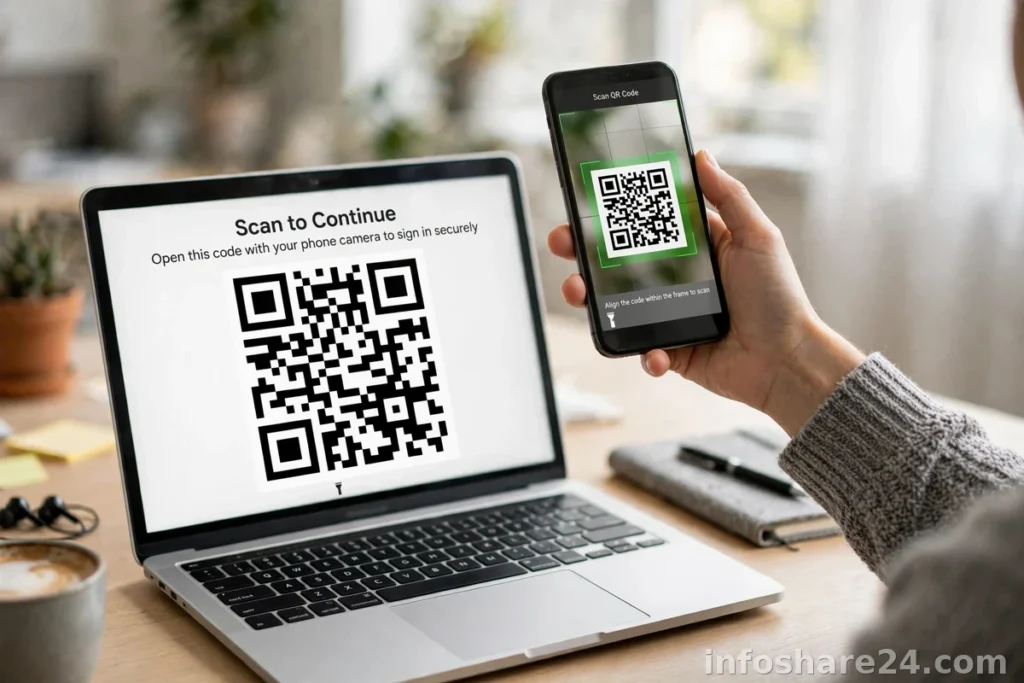
Never share or print a code you have not scanned yourself. Testing takes ten seconds.
- Scan it with your own phone camera. Open the camera app, point it at the code, and tap the link that appears. Most modern phones scan QR codes with the normal camera.
- Check where the link actually goes. Make sure the page that opens is the one you wanted. If it opens the wrong page, go back to the generator and check what you typed.
- Test it on a second phone if you can. A quick check on a friend’s phone catches problems with small or low-contrast codes.
- Test it at the size you will print. A code that scans fine on a big screen can fail when printed small. Print one test copy at the real size and scan it before you print a hundred.
Printing Tips
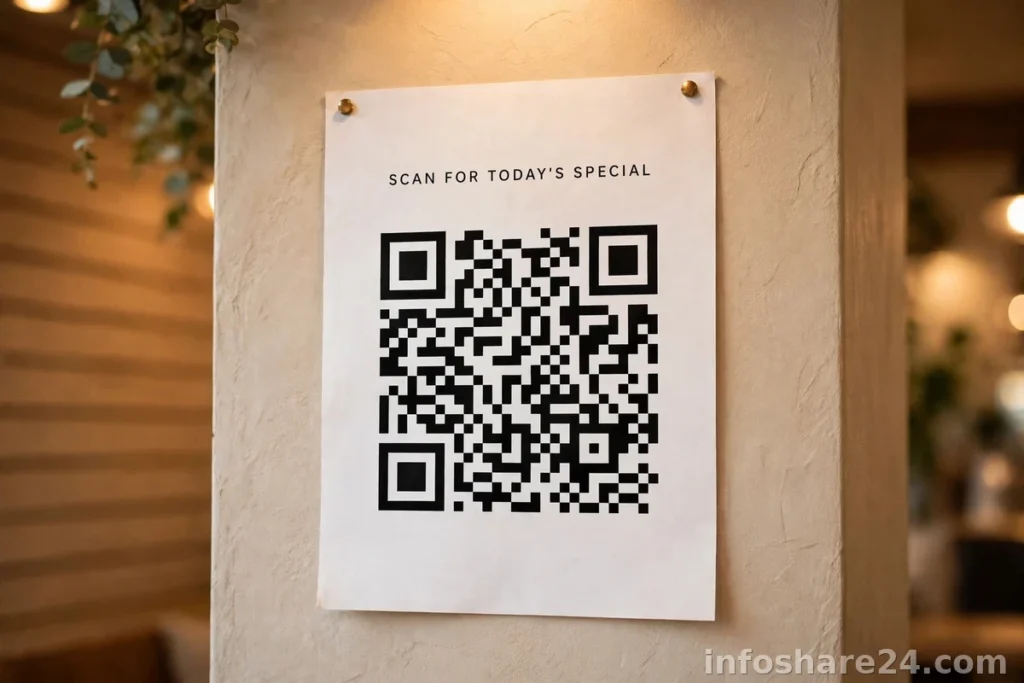
A printed QR code needs to be big and clear enough for a camera to read from a normal distance.
Make it at least 2 cm by 2 cm for close reading. For a wall poster, go much bigger — at least 5 cm across.
Keep it black on white, on matte paper. High contrast scans best, and matte paper beats glossy paper, which can catch the light and hide the code.
Leave white space around it. Do not crowd it with text or pictures — that empty border, called the quiet zone, helps the camera find the edges.
Put it where people can reach it. A code at eye level gets scanned far more often than one near the floor. If you are printing from your phone, see: How to Print from Your Phone Without a Computer.
Fixing Common Problems
If your code will not scan, the cause is usually simple: it is too small, too pale, or on a shiny surface. Make it bigger, darker, and matte.
If the wrong page opens, the link you typed is wrong — check it letter by letter. Free codes are usually static, so if the link changes later, make a new code.
If the print looks blurry, the file was too small. Download the PNG again at the largest size the generator offers — never stretch a small image to fill a poster.
Frequently Asked Questions
Is it really free to create a QR code?
Yes, for a basic code — the free generators above make a standard static code at no cost, with no account needed. Some sites charge for extras such as editable codes, but you do not need those.
Do QR codes expire?
No. A standard static code works as long as the link still works — if the page is deleted, it will lead nowhere.
Do I need an app to scan a QR code?
No. On most modern phones, the built-in camera app scans QR codes — point the camera at the code and tap the link. On older Android phones, Google Lens does the same job.
Can I put a QR code on my CV or business card?
Yes. Link it to your portfolio, your LinkedIn profile, or a page with your work samples, so an employer can reach it with one scan.
Conclusion
That is all it takes: decide what the code should open, use a free generator, enter your link, keep the design simple, and download it as a PNG. Then test it before you share or print it.
Make your first QR code today — it takes less than a minute, it costs nothing, and you will keep finding new uses for it: a menu, a Wi-Fi password, or a link to your work.