Deleting a photo by mistake feels terrible. The good news is that on Android, a deleted photo is usually not gone at once — most phones move it to a Trash folder first, where it stays for days or weeks.
This guide works through the places your photo may still be, in the best order: the Trash folders first, then your cloud backup, and only then a recovery app.
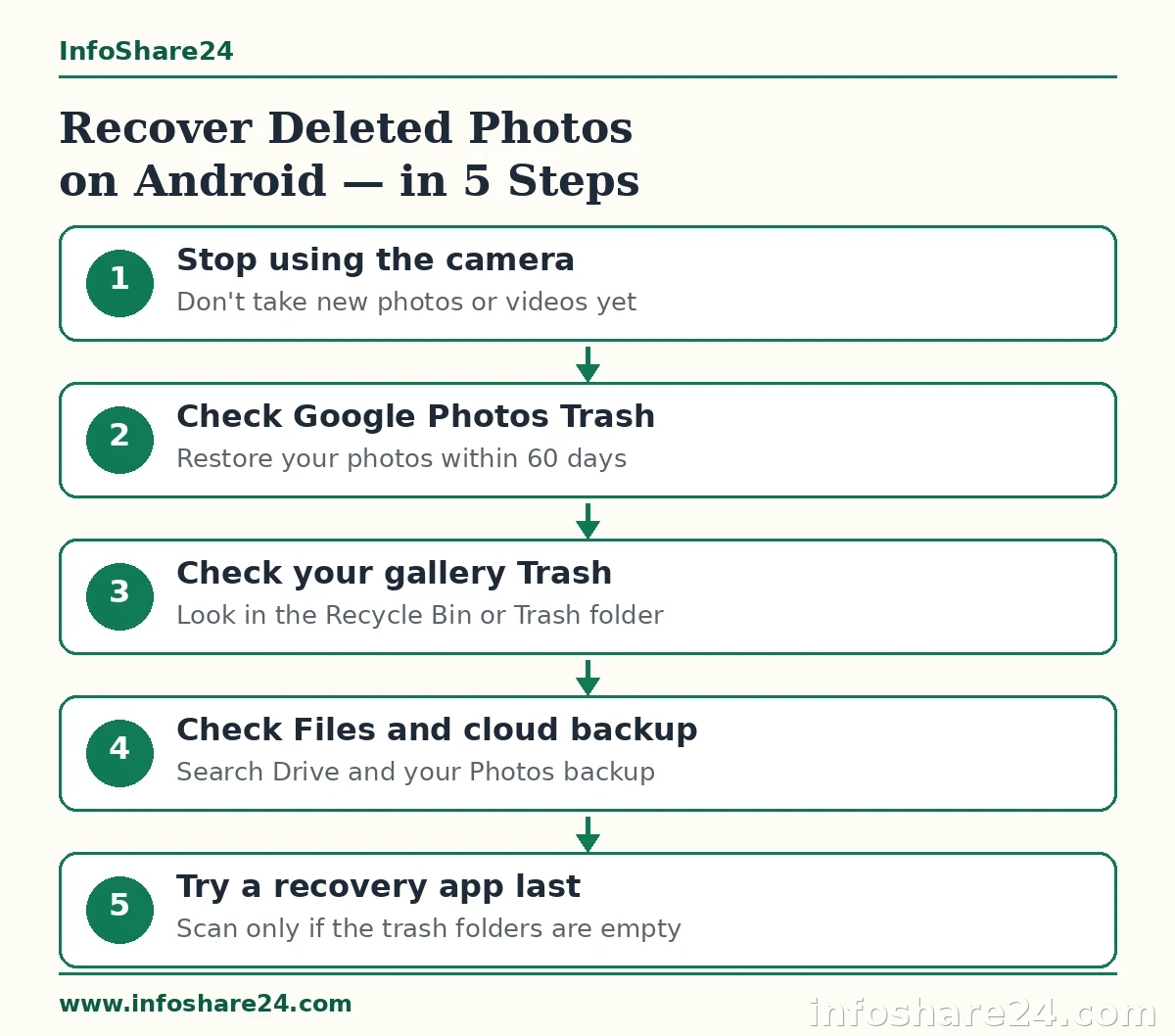
Why Deleted Photos Are Often Still There
When you delete a photo on Android, your phone normally moves it to a Trash or Recycle Bin folder instead of erasing it straight away. Find it in time, and one tap restores it in full quality.
But once that time runs out, the photo is gone for good, and a new photo can be saved over its old spot. Check the Trash folders today, not next week.
First: Stop Taking New Photos Right Now
Before you open any app, put the camera down — this is the most important step in the whole guide.
- Stop taking photos and videos. Every new photo you take can overwrite the deleted one.
- Avoid installing new apps or downloading large files. They also write new data to your phone.
- Do not factory-reset your phone. A reset wipes your photos for good.
Then work through the steps below. Most people find their photo in Step 1 or Step 2.
Step 1: Check Google Photos Trash
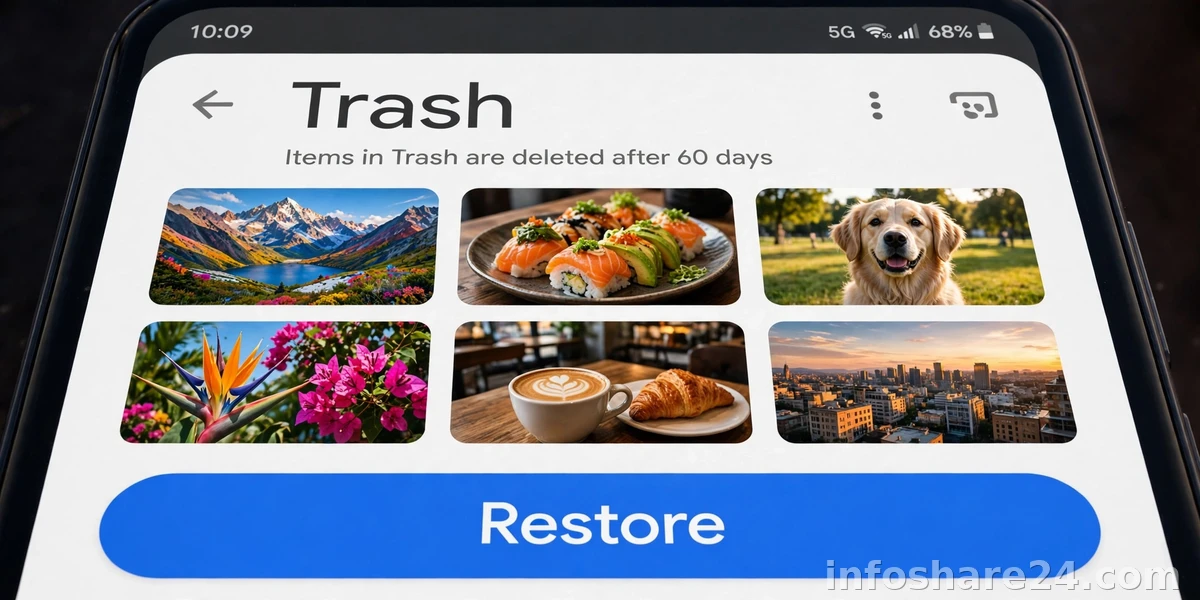
Google Photos is the first place to look — it is the default gallery on many Android phones. Backed-up photos stay in Trash for 60 days; others stay for 30 days.
- Open Google Photos and tap Library, then Trash. On some phones the path is Collections, then Trash.
- Select your photo and tap Restore. Long-press the first photo to select several at once.
- Restore the most important photos first — Trash shows how many days each item has left.
If the photo is not here, your phone’s own gallery app has a separate Trash folder. For a backup habit that prevents this scare, see: Back Up Your Phone in 5 Minutes: Photos, Contacts and Files.
Step 2: Check Your Gallery App’s Trash
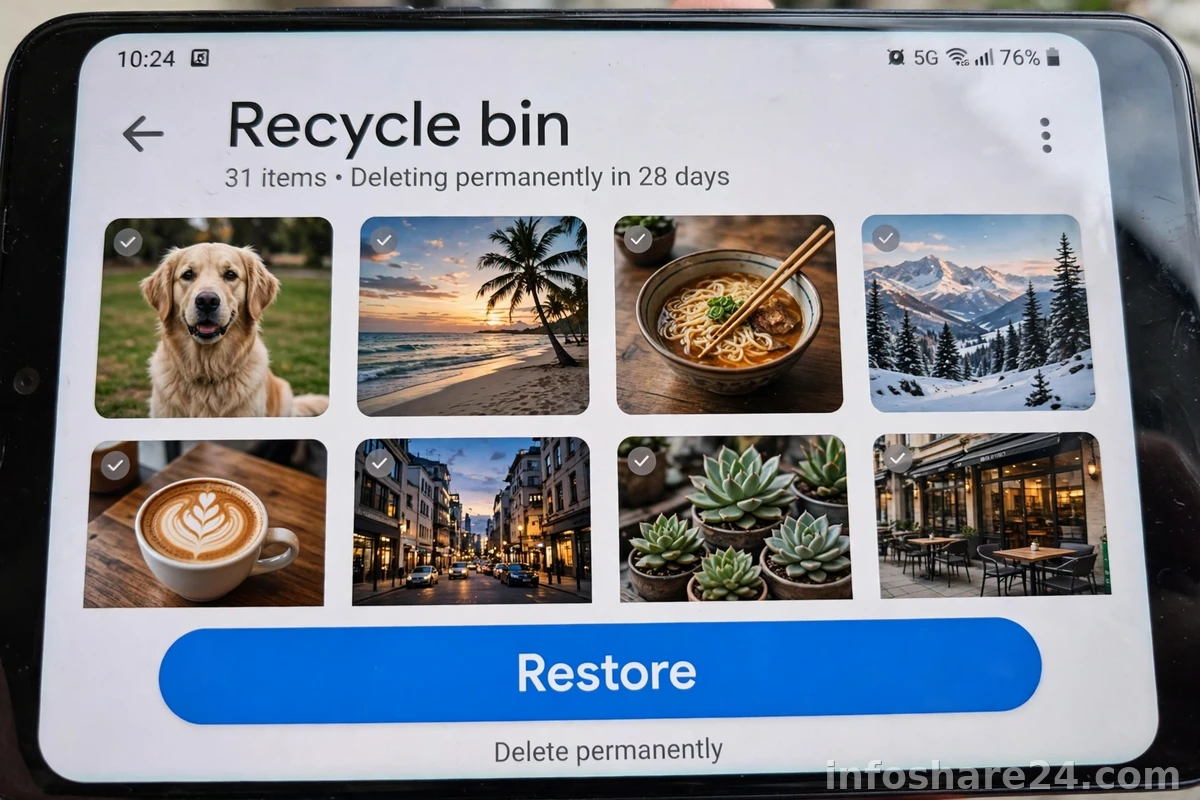
Many phones have a second gallery app made by the phone maker — Samsung Gallery or Xiaomi Gallery, for example — with its own Trash, separate from Google Photos.
- Open your gallery app and look for Recycle Bin, Trash, or Recently Deleted. On Samsung phones, it is under the menu (three lines) in Gallery.
- Select your photo and tap Restore. Samsung’s Recycle Bin keeps photos for 30 days, and other brands usually keep them for about 30 days too.
If both Trash folders are empty, the photo may still be in your file manager’s trash or a cloud backup.
Step 3: Check the Trash in Files by Google
Files by Google, the file manager on many Android phones, has its own Trash folder, for photos deleted from the file manager rather than a gallery app.
- Open Files by Google and tap the menu, then Trash. The menu is the three lines at the top left.
- Select the photo and tap Restore. It goes back to the folder it was deleted from.
This takes less than a minute.
Step 4: Check Your Cloud Backups
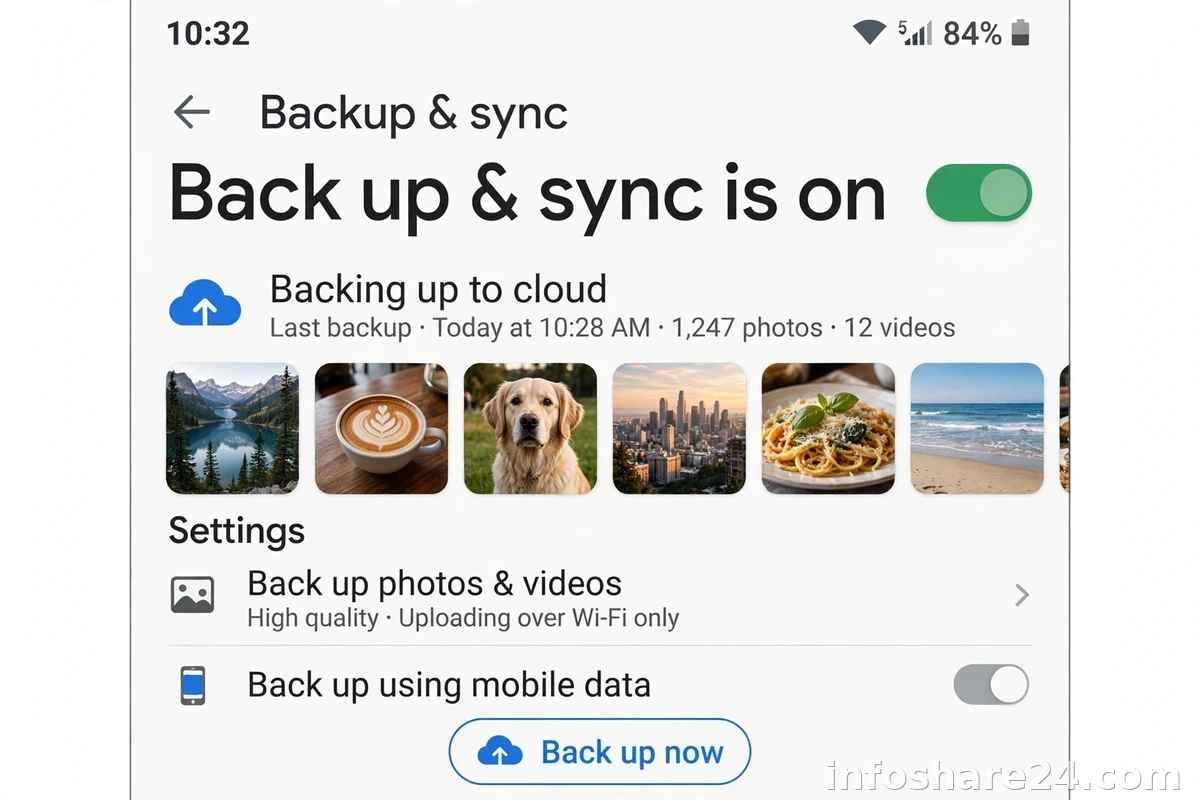
If your photos were backed up to the cloud before you deleted them, the cloud copy may still be there — even if every Trash folder on your phone is empty.
- Check Google Photos backup. Tap your profile picture, then Photos settings, then Backup. If backup was on, the photo may still be in your Google account — check the Trash at photos.google.com too.
- Check Google Drive and other cloud apps. Open Drive and search for the photo by name, and do the same in OneDrive, Dropbox, or your phone maker’s cloud.
- Download the photo back to your phone. To choose the right service for the future, see: What Is Cloud Storage and How to Choose the Right One.
A cloud copy only exists if backup was running before the photo was deleted.
Step 5: Try a Recovery App — Only as a Last Resort
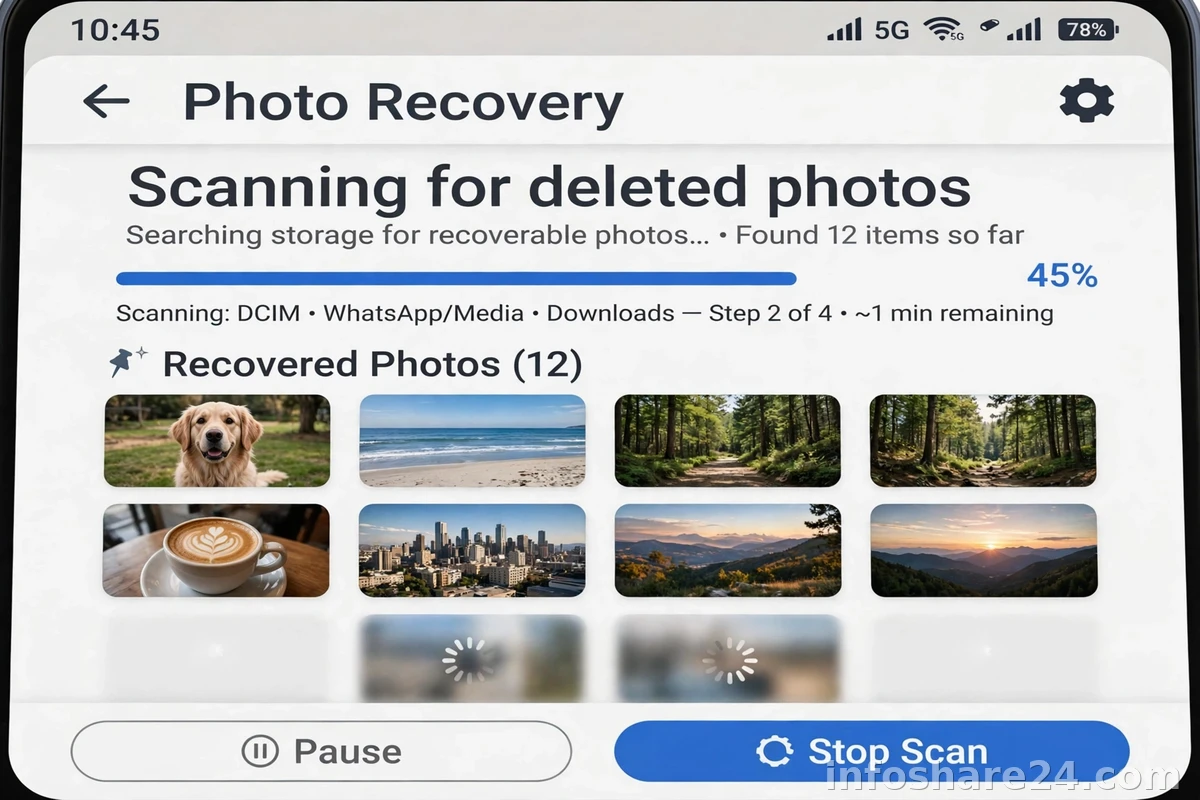
If the Trash folders and your backups are all empty, a photo recovery app is the last option. Apps such as DiskDigger scan your storage for leftover pieces of deleted photos — but it sometimes works, and often it does not. No app can promise to bring a photo back.
- Install a recovery app only from the Google Play Store. Check its reviews and download count first, and never install one from a random website or a link someone sent you.
- Give it storage permission and run a scan. A basic scan looks for thumbnails and cached copies and is free on most apps. A deep scan needs a rooted phone — rooting can void your warranty.
- Save anything it finds straight away. If the scan finds your photo, save it to a new folder or upload it to Google Photos immediately.
- Be careful with apps that ask for payment first. A trustworthy app shows you what it found before asking you to pay — if it demands money first, uninstall it.
Recovery apps work best for photos deleted very recently, and without root they often recover only small, low-quality copies. If the app finds nothing, stop there instead of paying for more apps.
If Nothing Worked
If every Trash folder, every backup, and a recovery scan all come up empty, the photo is deleted permanently. First check two places people forget: your WhatsApp chats, and any email where you sent the photo as an attachment. Your WhatsApp backup may hold it — see: How to Back Up WhatsApp Chats on Android.
How to Never Lose Photos Again
Losing a photo once is bad luck; losing one twice is a missing backup.
- Turn on Google Photos backup. Tap your profile picture, then Photos settings, then Backup, and turn it on. Set it to back up over Wi-Fi only.
- Keep your phone’s storage from filling up — when it runs out, people delete photos in a rush. For safe ways to make room, see: How to Free Up Storage on Android Without Losing Photos.
- Check your backup once a month. Open Google Photos on a computer and confirm your newest photos are there.
Frequently Asked Questions
How long do deleted photos stay in Google Photos Trash?
Backed-up photos stay for 60 days; others stay for 30 days. After that, they are deleted permanently.
Can I recover a photo deleted more than 60 days ago?
Probably not. Once the Trash time has passed and the photo is gone from your cloud backup too, recovery is very unlikely.
Do I need to root my phone to recover deleted photos?
No — a basic scan works without root. A deep scan needs root, but rooting can void your warranty.
Are photo recovery apps safe?
Apps from the Play Store with many downloads and good reviews are usually safe, but read the reviews first. Avoid any app that asks for payment before showing what it found.
Conclusion
Most deleted photos on Android are recoverable, because your phone keeps them in a Trash folder first. Work in this order: stop taking new photos, check Google Photos Trash, check your gallery’s Recycle Bin, check the Trash in Files by Google, then check your cloud backups. Only if all of those are empty should you try a recovery app — as a last chance, not a guarantee.
The real fix takes two minutes today: turn on Google Photos backup, so the next deleted photo is a one-tap restore.